To optimize settings for smooth gameplay in Palworld 1.0, adjust the graphics settings to match your system's capabilities and apply appropriate performance tweaks. This guide provides practical steps to enhance performance while retaining visual quality.
Configure Graphics Settings
Adjusting the graphics settings is the first step to improving performance while preserving a good visual experience. Follow these steps:
steps
- Open the settings menu in Palworld and navigate to the graphics section.
- Lower the texture quality and shadow settings. This will reduce GPU load and improve frame rates.
- Turn off unnecessary visual effects like motion blur and depth of field to reduce rendering strain.
Apply Performance Tweaks
To further enhance performance and stability, consider these additional settings.
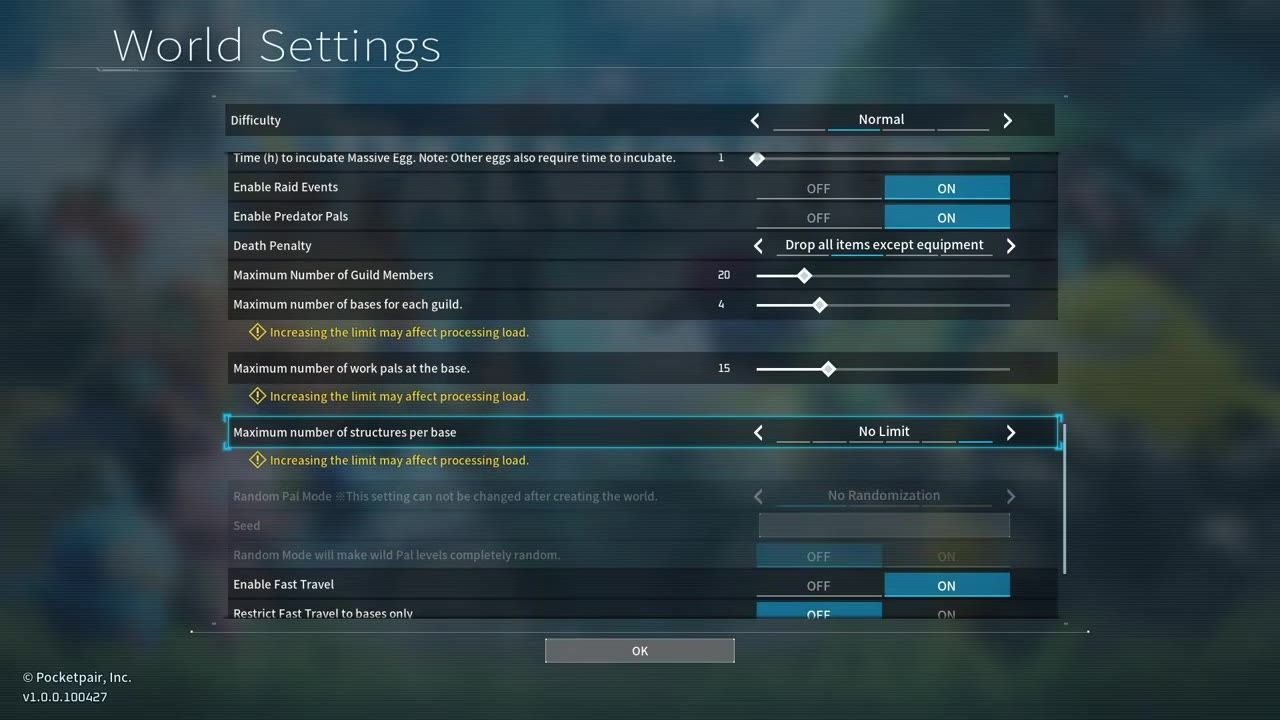
The custom world settings menu highlights the maximum number of structures per base set to 'No Limit'. — Chaos Bear Gaming
FAQs: Common Questions
To assist you further, here are detailed answers to common questions about optimizing Palworld settings for smooth gameplay.
FAQ
What are the optimized graphics settings for Palworld?
To optimize graphics settings, lower texture quality and shadow settings, and disable visual effects like motion blur and depth of field. This balances performance and visual quality.
How to achieve smooth performance in Palworld 1.0 without hardware upgrades?
To improve performance without upgrading your hardware, adjust the game settings in the custom world settings menu. Especially consider raising the "maximum number of structures per base" cautiously and using alignment mode for efficient structure placement.
Sources
Screenshots on this page are frames from the videos below, used to illustrate the steps they describe. All rights remain with their creators.
- Palworld 1.0 Base Building Tips I Wish I Knew Sooner — Chaos Bear Gaming, July 12, 2026
Checked against:
- v1.0.3: Balance Adjustments & Bug Fixes — pocketpair_dev, 2026-08-12