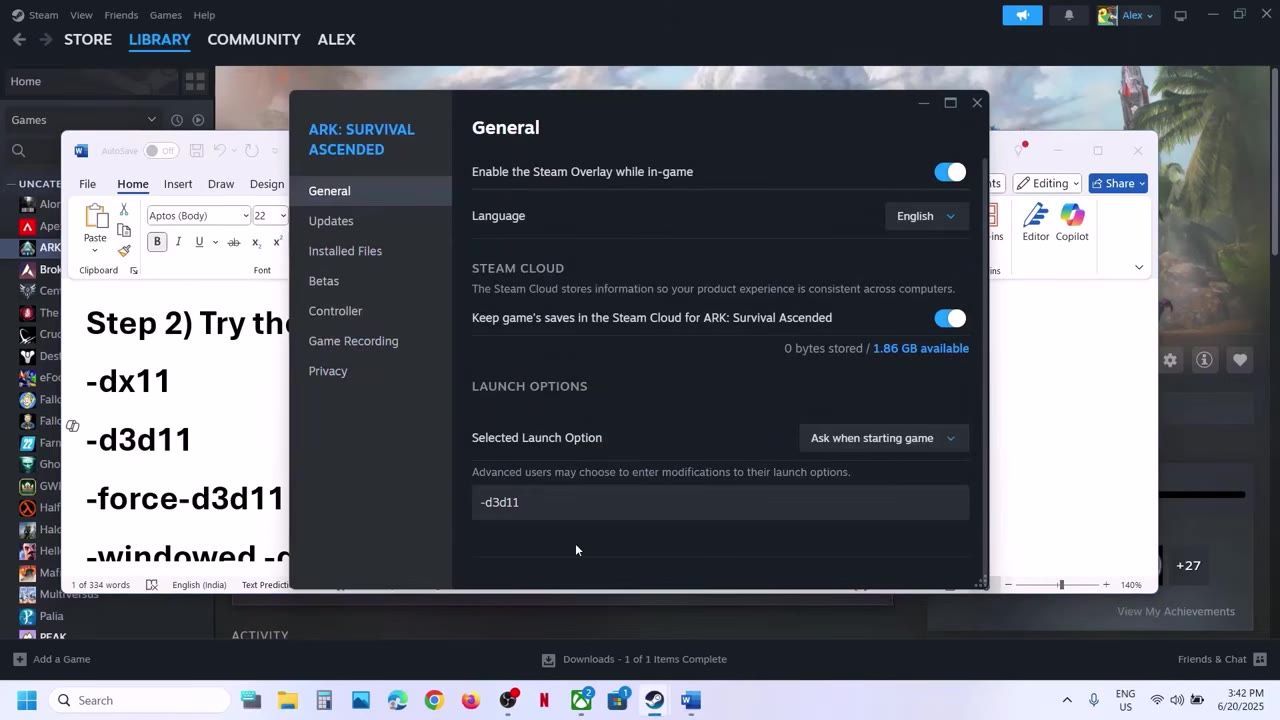
Restart your computer, adjust Steam launch options using commands like -dx11 or -dx12, and verify game files to resolve GPU crashes in ARK: Survival Ascended.
Restart Your Computer
Refreshing your system can clear temporary data conflicts that may contribute to GPU crashes. Always restart your computer before troubleshooting ARK: Survival Ascended issues.
steps
- Open the Start menu on your Windows desktop.
- Select "Restart" to reboot your computer fully.
- Once restarted, launch ARK: Survival Ascended and check for improvements.
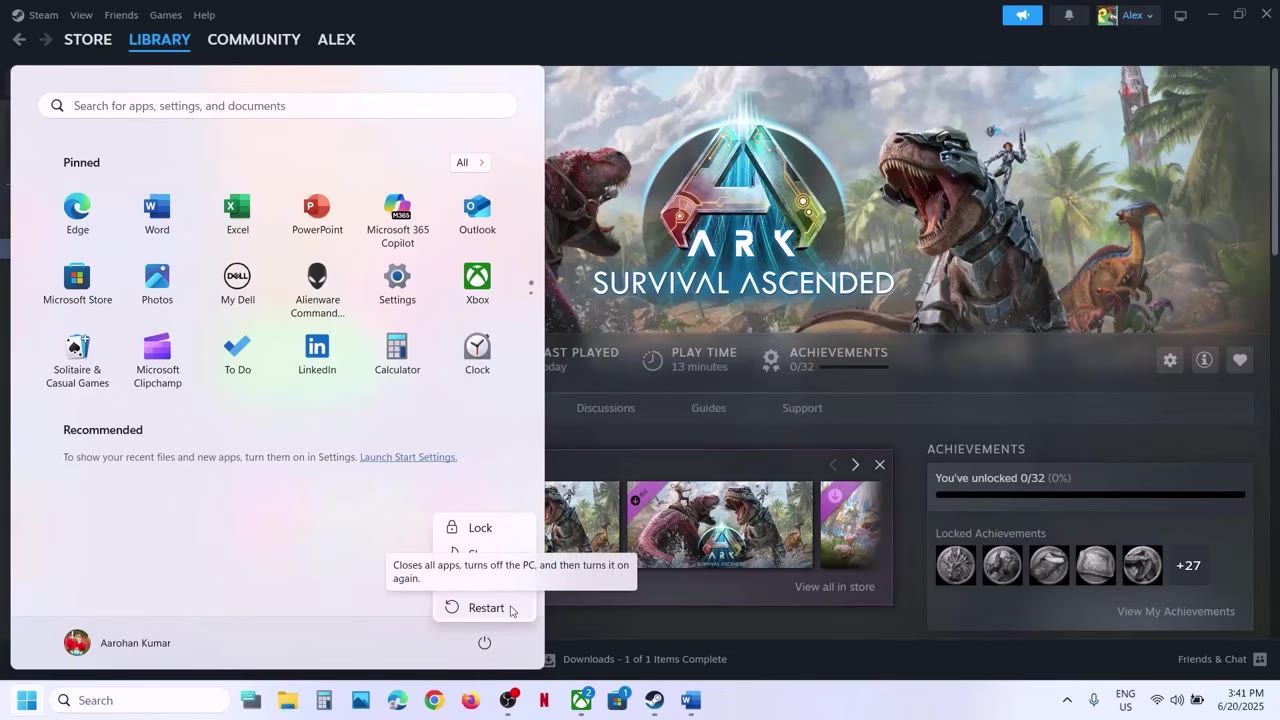
The Windows desktop Start menu is open, showing the Restart option for the computer. — AarohanTechSol
Adjust Game Launch Options
Using different graphics APIs via launch options in Steam can help reduce GPU-related crashes. Options like -dx11 and -dx12 are worth testing.
steps
- Open Steam and locate ARK: Survival Ascended in your library.
- Right-click on the game and select "Properties."
- Inside the "Launch Options" section, enter commands such as:
-dx11(DirectX 11)-dx12(DirectX 12)-d3d11(Another variation of DirectX 11)
- After entering each command, launch the game to observe changes.
- If none of these options work, remove them and proceed to the next troubleshooting step.
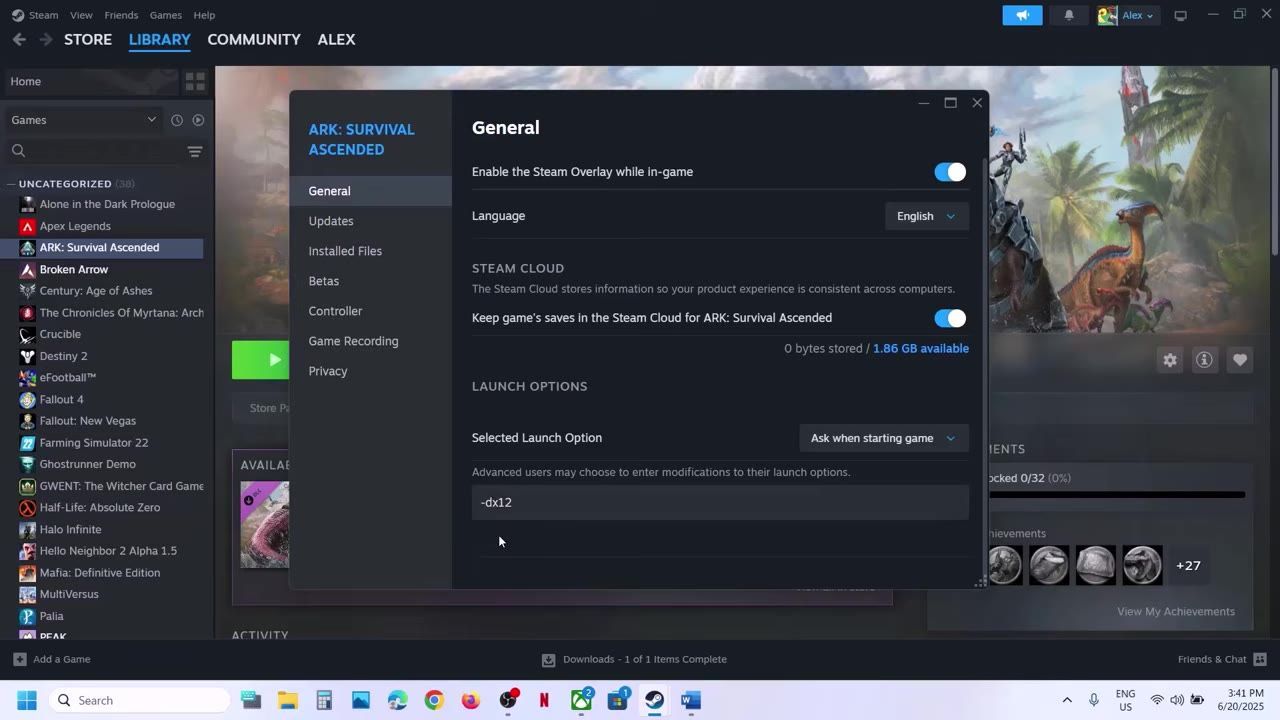
Steam game properties showing the launch options available for customization. — AarohanTechSol
Reinstall BattleEye Security Software
Corrupted security software can interfere with the game's startup. Reinstalling BattleEye securely may resolve this issue.
steps
- Navigate to the game's installation folder via Steam:
- Right-click on the game in your library.
- Select "Manage" > "Browse Local Files."
- Locate the
BattleEyefolder within the directory. - Right-click on
Uninstall BattleEyeand select "Run as administrator." - Reinstall BattleEye using the
Install BattleEyebatch file, also running it as administrator. - Optionally, test launching the game without reinstalling BattleEye temporarily.
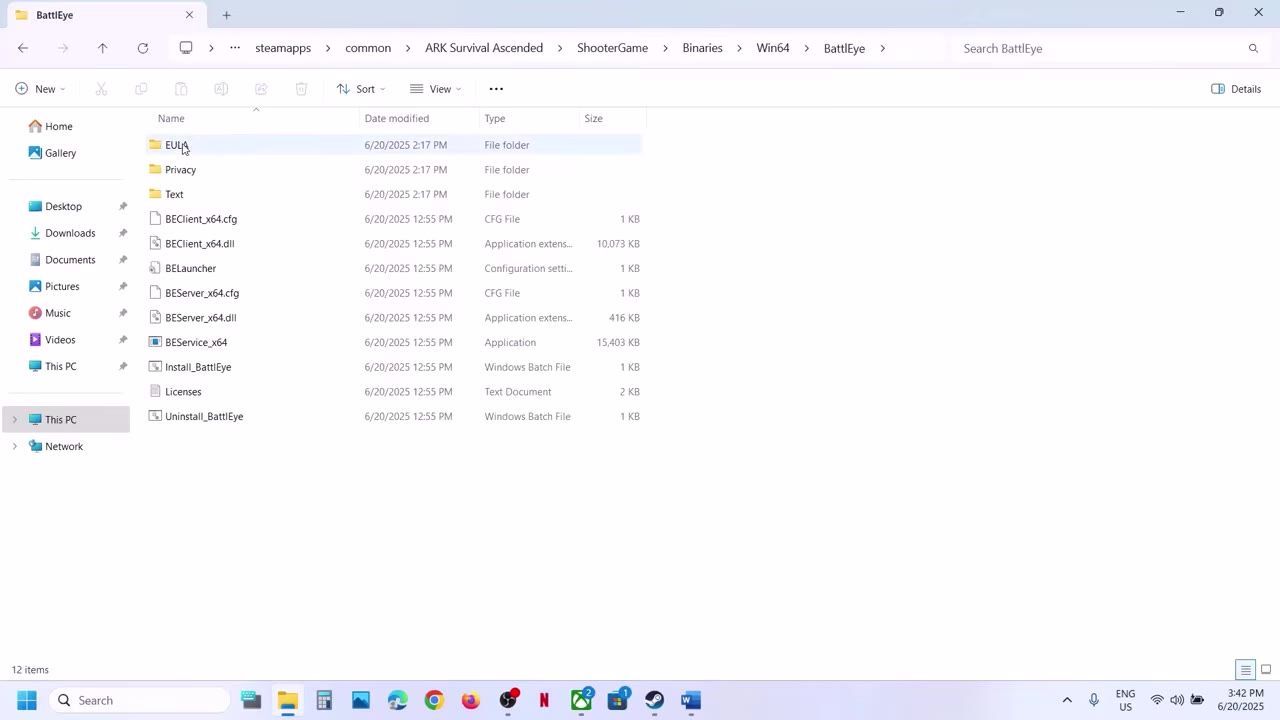
The BattleEye folder shows its contents, including uninstallation and installation batch files. — AarohanTechSol
Verify Game Files and Graphics Driver
Verifying game files helps identify and fix corrupted files, while updating drivers ensures optimal GPU performance.
steps
- In Steam, navigate to ARK: Survival Ascended's "Properties."
- Under "Installed Files," select "Verify integrity of game files."
- Perform a clean installation of your graphics driver:
- Visit the NVIDIA or AMD website.
- Download the latest driver for your card and operating system.
- Select "Perform Clean Installation" option during setup.
- Restart your computer after installing the driver update.
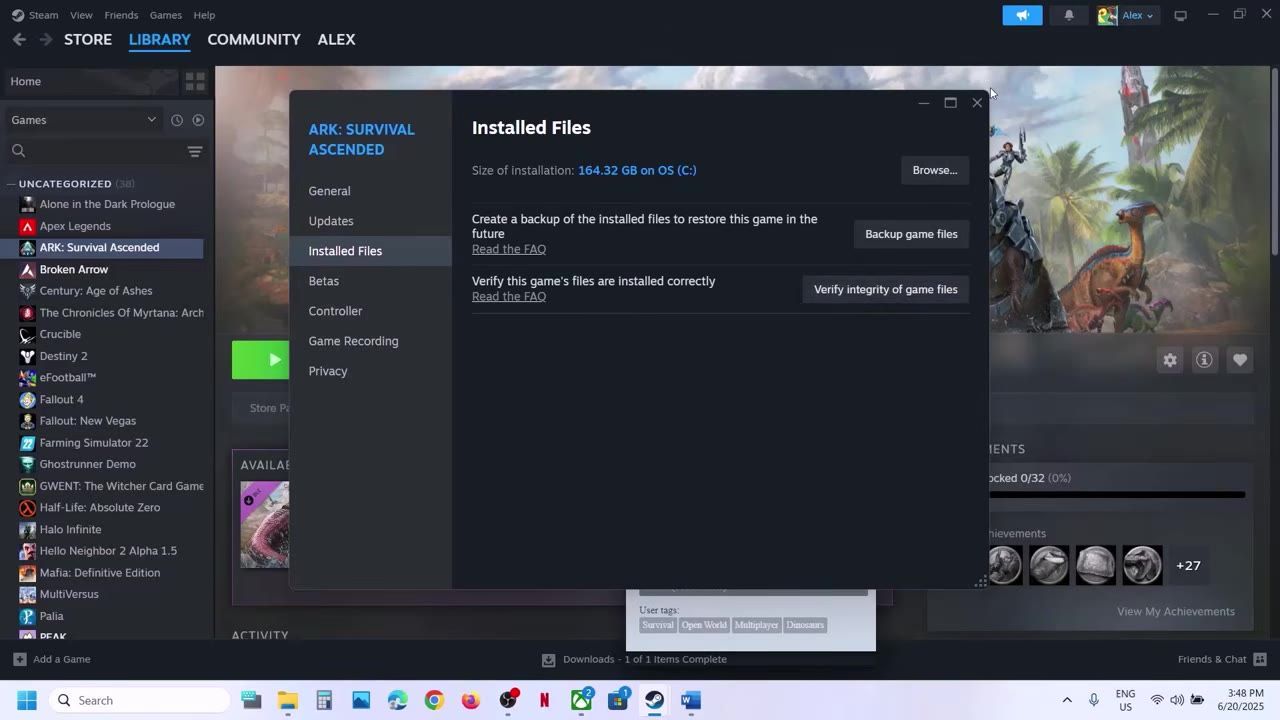
Steam UI for ARK: Survival Ascended showing Installed Files with 'Verify integrity of game files' option. — AarohanTechSol
Adjust Game Settings
Lowering in-game graphics settings and disabling unnecessary features like DLSS can resolve compatibility and performance issues.
steps
- Launch ARK: Survival Ascended and navigate to "Settings" > "Video."
- Adjust:
- Lower Graphics Settings (e.g., switch to Medium or Low instead of Epic).
- Set resolution to 1920x1080 or lower.
- Use Windowed mode instead of Fullscreen.
- Toggle VSync on or off to test performance.
- Disable DLSS and frame generation features.
- Save settings and relaunch the game to test the results.
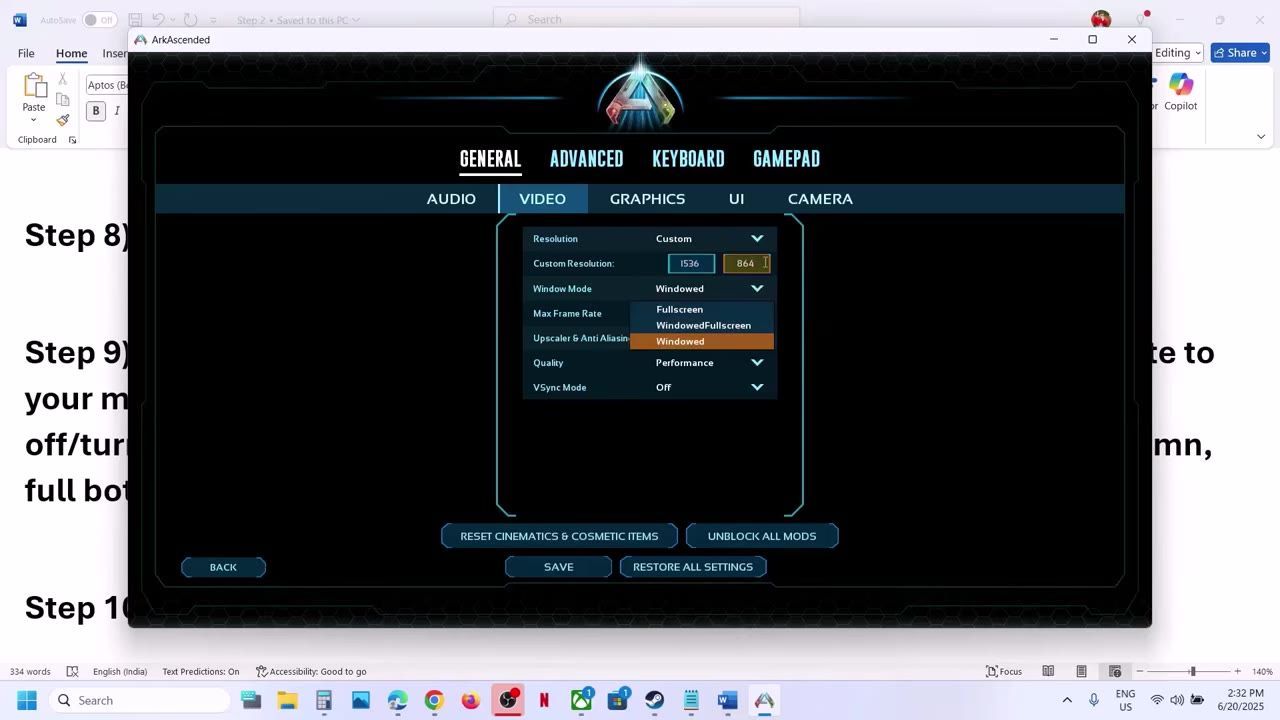
The graphics settings menu in ARK allows users to adjust resolution and display modes. — AarohanTechSol
FAQ
detailed guide fixing gpu crashes ark
To fix GPU crashes in ARK: Survival Ascended, restart your computer, test launch options like -dx11 or -dx12 in Steam, verify game files, reinstall the BattleEye security software, and try launching the game with adjusted graphics settings.
ark survival graphics performance fix
Improving graphics performance in ARK involves lowering in-game settings, adjusting resolution, switching to windowed mode, disabling features like DLSS, and updating GPU drivers with a clean installation.
how to handle ark crashes gpu issues
Handling GPU crashes in ARK includes restarting the computer, testing launch options, verifying game files, reinstalling BattleEye, adjusting graphics settings, and ensuring your graphics driver is cleanly installed and up-to-date.
Sources
Screenshots on this page are frames from the videos below, used to illustrate the steps they describe. All rights remain with their creators.
- Fix ARK Survival Ascended GPU Crash Dump Triggered Error On PC — AarohanTechSol, June 20, 2025
Checked against:
- Astraeos Heaven & Abyss Update is now live! — ARK: Survival Evolved, 2026-08-27