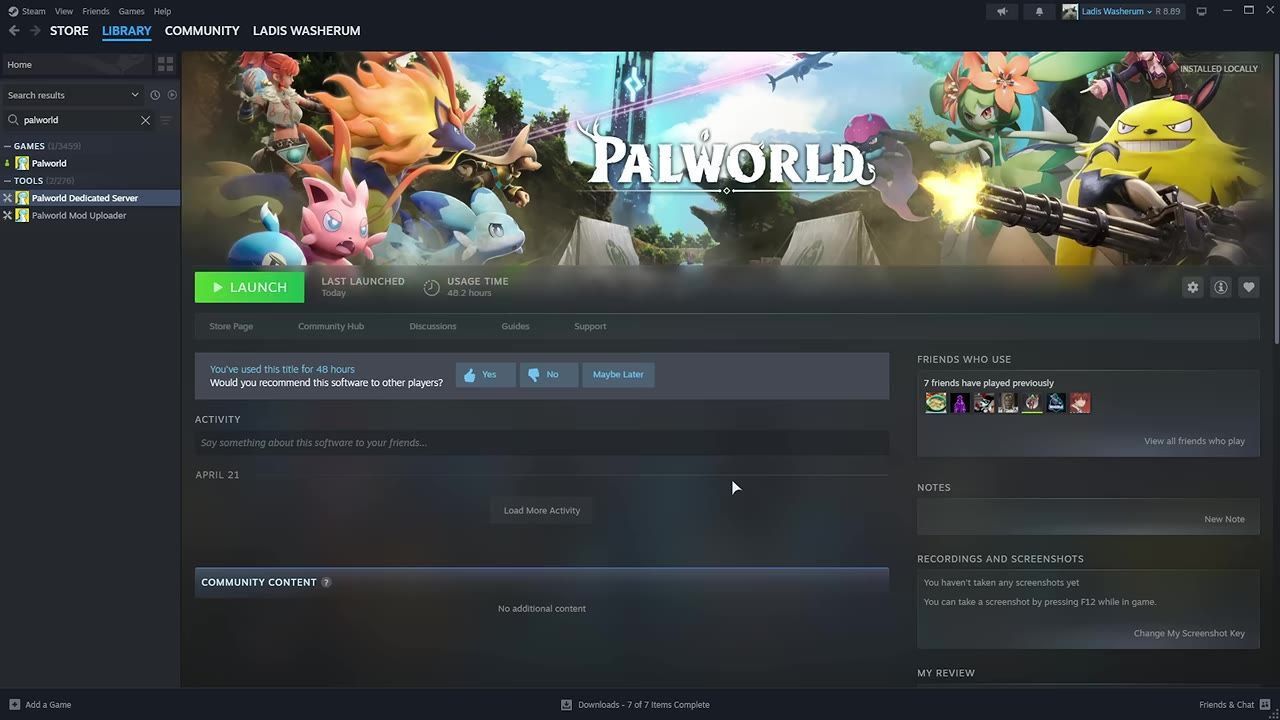
Download the Palworld Dedicated Server via Steam or SteamCMD, customize the settings.ini file, and ensure your network settings and ports are configured for seamless access.
Download and Install Dedicated Server Files
Setting up a dedicated server for Palworld starts with downloading the required server files. Follow the steps below to get started:
steps
- Open Steam or SteamCMD and search for "Palworld Dedicated Server" in the tools section.
- Download the dedicated server files to your local system.
- Navigate to the folder where the server files are installed.
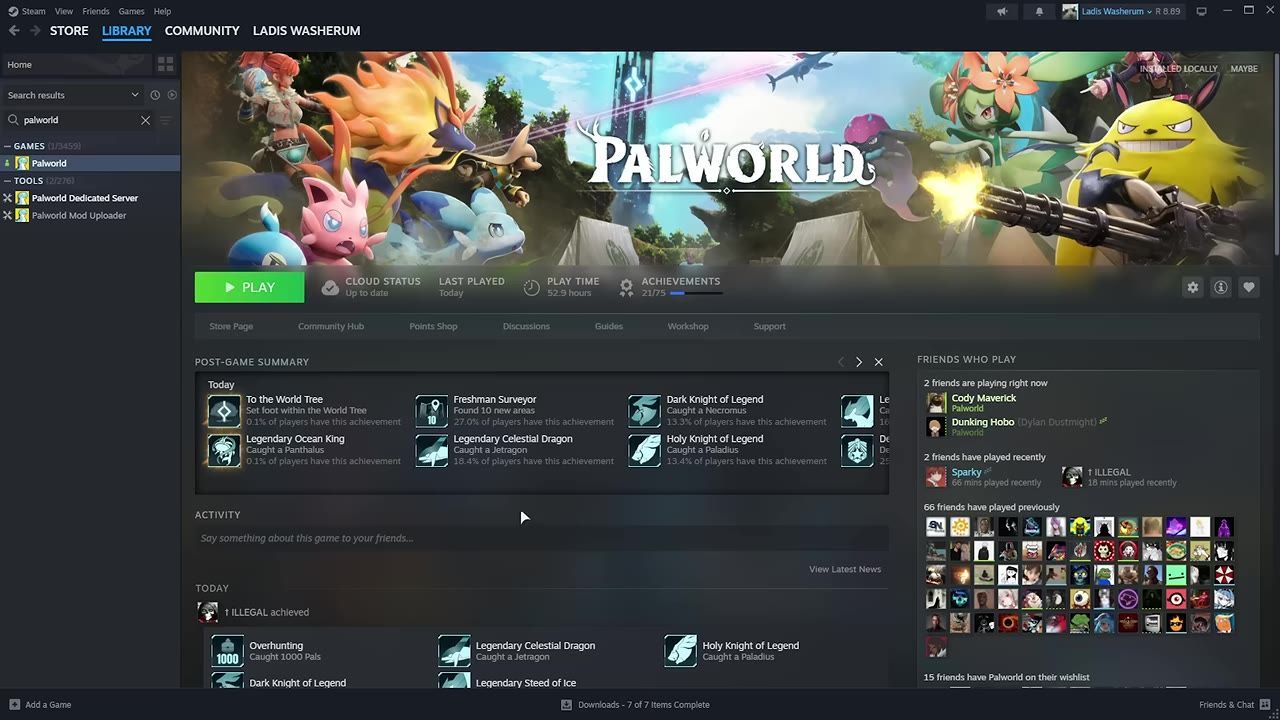
Steam client highlights the Palworld Dedicated Server option under the Tools section. — TroubleChute
Configure Server Settings
Once you have installed the dedicated server files, you can customize your server settings to suit your preferences.
steps
- Locate the
settings.inifile within the server folder. - Open the file with any text editor and modify settings such as server name, maximum player count, admin password, and whether crossplay is enabled.
- Save the edited file to apply changes.
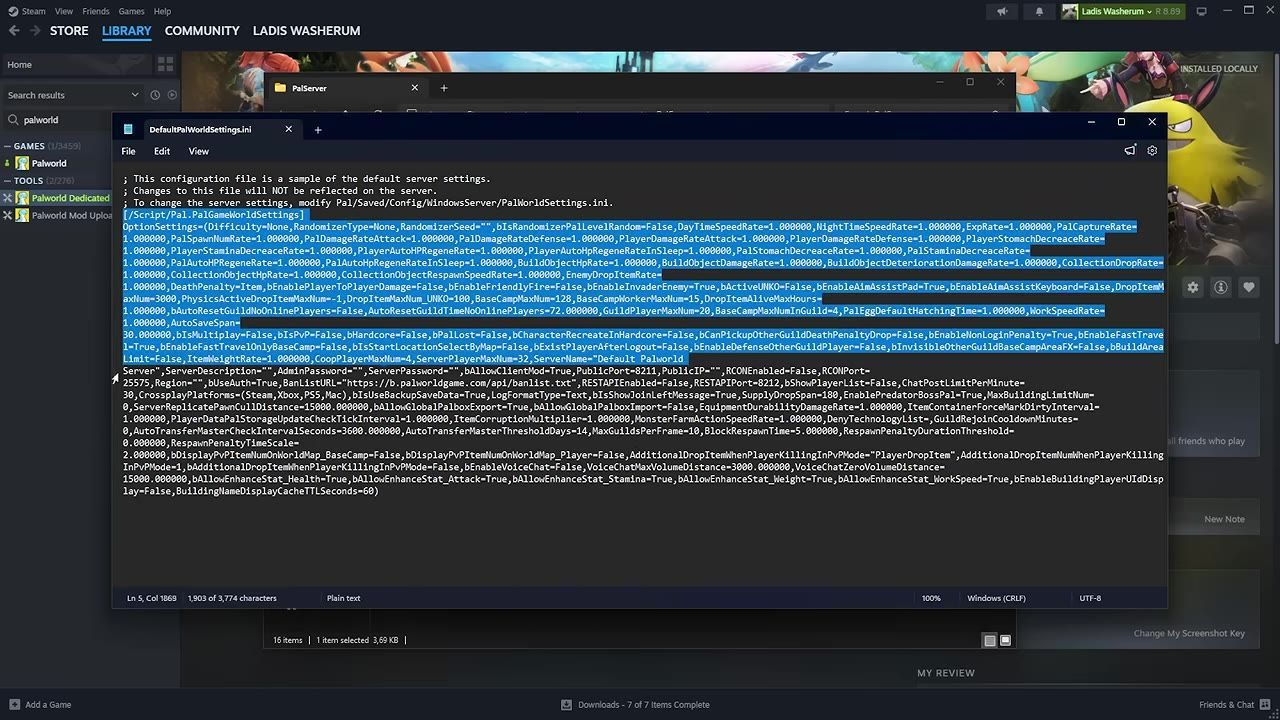
The settings.ini file is open in a text editor, showing configurable server settings. — TroubleChute
Setup Network for Multiplayer Connection
To ensure that players can connect smoothly, you must configure your network settings properly.
steps
- Use PowerShell to add exceptions for the server in Windows Firewall.
- Log in to your router’s configuration page and enable port forwarding for the required ports—8211, 27015, and 27016.
- Share your external IP address with players for connection.
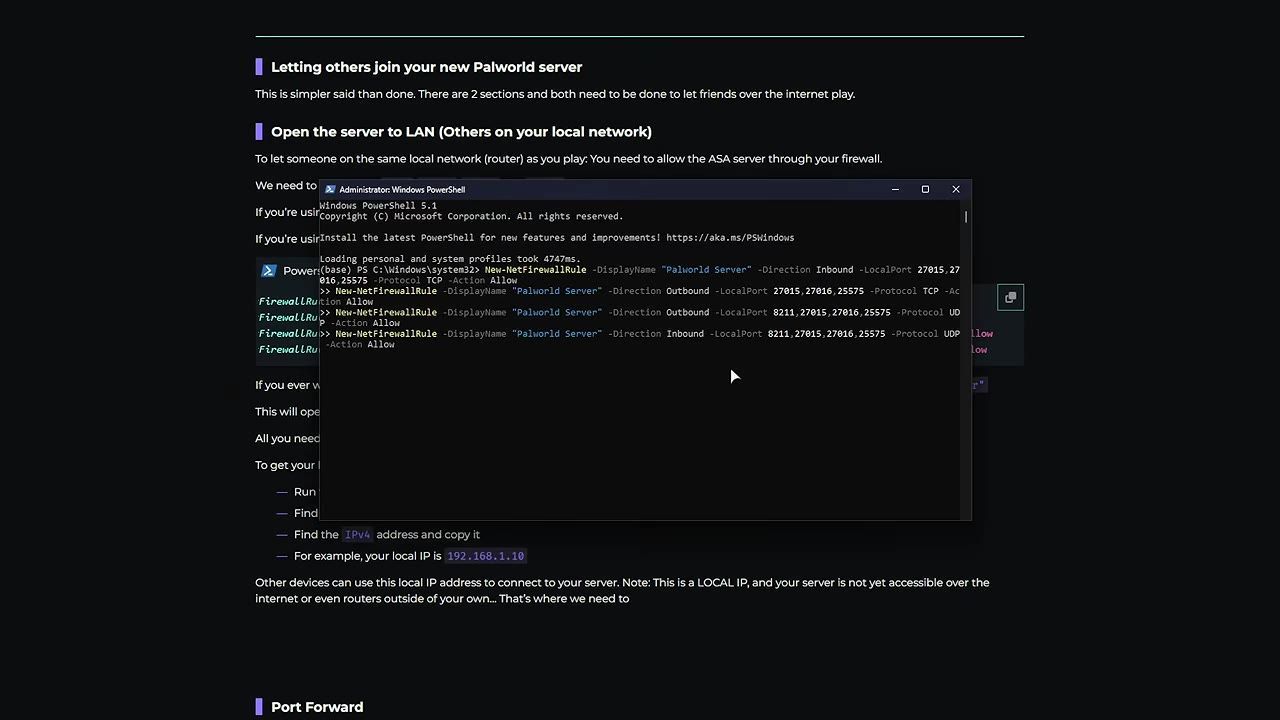
PowerShell is shown with firewall configuration commands for enabling a server. — TroubleChute
Starting and Accessing the Server
Once your server is configured, launching it and verifying functionality is straightforward.
steps
- Start the Palworld Dedicated Server using Steam or a preconfigured script (e.g.,
start.bat). - Open Palworld, navigate to the multiplayer menu, and connect using your server's address.
- Confirm that the server is accessible for invited players.

Palworld menu screen showing the multiplayer server connection options. — TroubleChute
Troubleshooting Server Issues
Dedicated server hosting can encounter common issues. Here’s how to troubleshoot them:
FAQ
How to host a Palworld dedicated server step-by-step?
To host a dedicated server in Palworld, download the server files via Steam or SteamCMD, customize the server settings in the settings.ini file, configure network settings (such as port forwarding and firewall exceptions), and launch the server through Steam or a startup script.
Sources
Screenshots on this page are frames from the videos below, used to illustrate the steps they describe. All rights remain with their creators.
- Palworld 1.0 Dedicated Server + Migrate Co-op Save | Complete Guide — TroubleChute, July 10, 2026
Checked against:
- v1.0.3: Balance Adjustments & Bug Fixes — pocketpair_dev, 2026-08-12