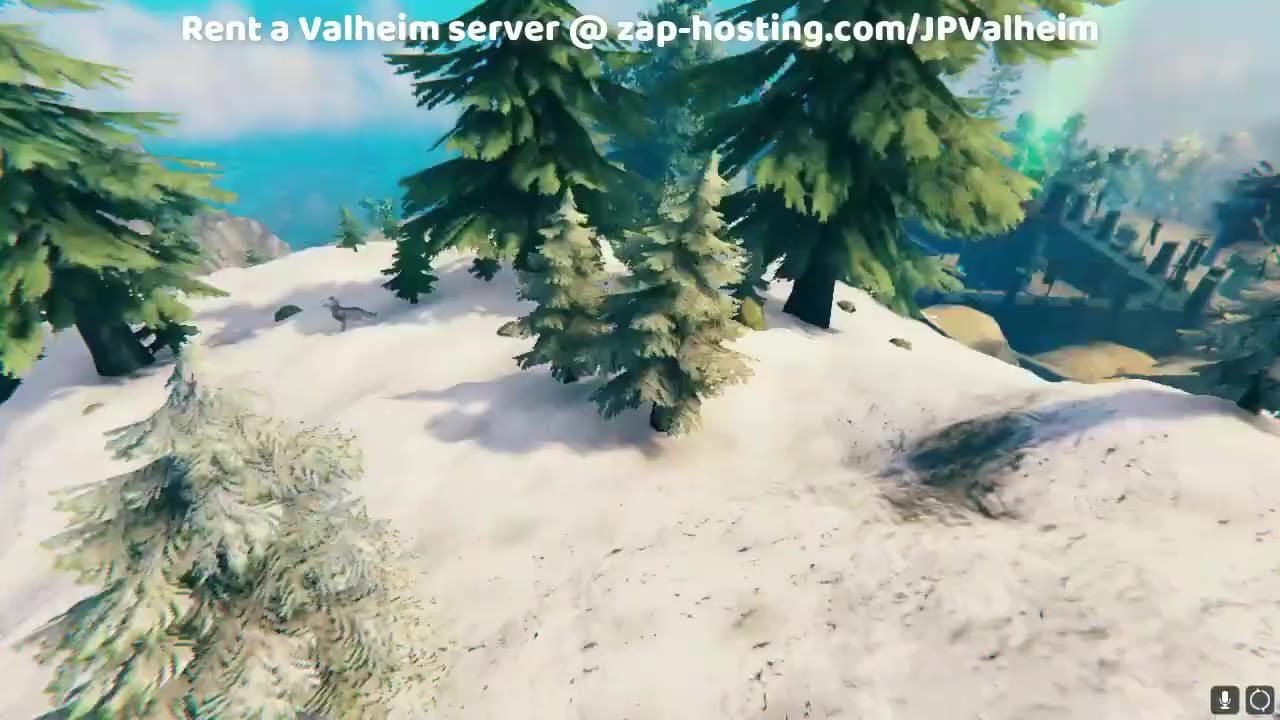
To fix lag and boost FPS in Valheim, lower your resolution and point light settings, and ensure base placement avoids heavy render areas.
Changing Resolution Settings
Lowering your resolution is one of the most effective ways to boost your FPS in Valheim, particularly on less powerful systems. Here's how to adjust this setting:
steps
- Open Valheim and navigate to the settings menu.
- Adjust the resolution to a lower level, such as 720p, if your system struggles to handle 1080p.
- Save your changes and return to the game to assess the performance improvement.
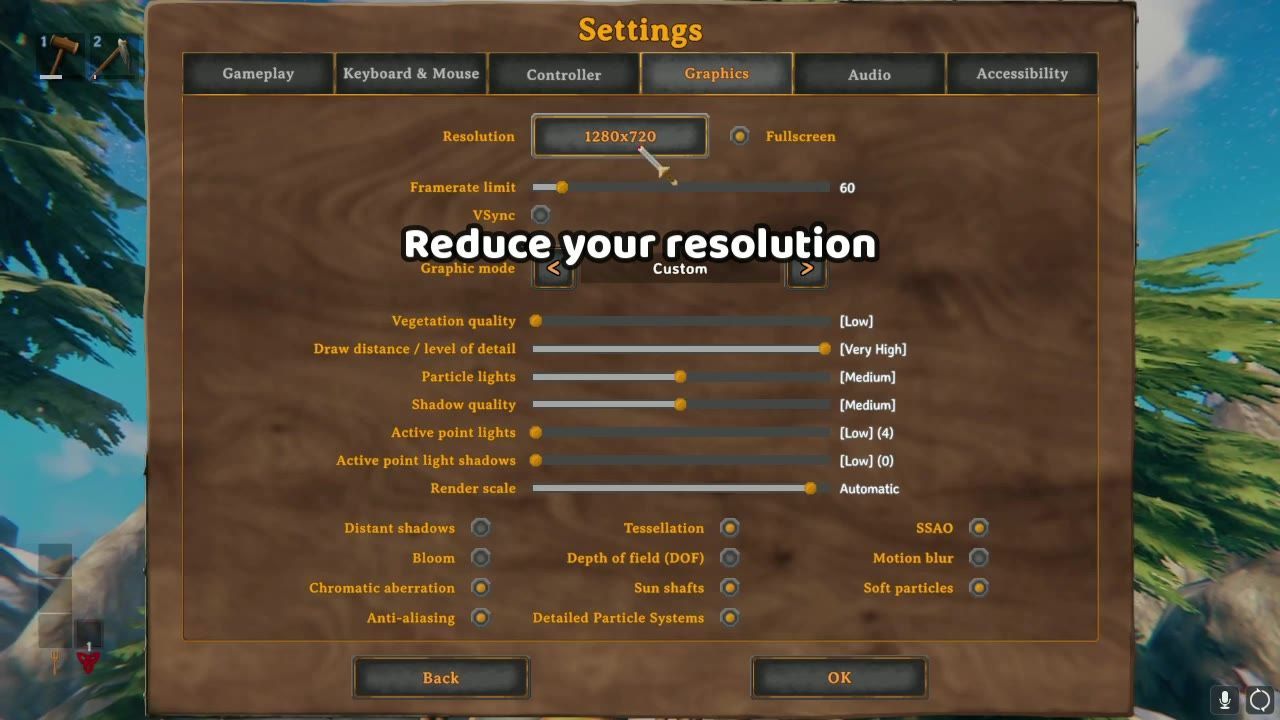
The game settings menu displays the resolution settings and graphical adjustment options. — JP Valheim
Optimizing Point Light Settings
Point light settings control the number of light sources your game renders. Lowering this setting can significantly reduce lag, especially in areas with multiple light sources like campfires or large bases.
steps
- Go to the graphics settings in Valheim.
- Find the option labeled "Active point lights" and lower it to the minimum value.
- Confirm that this change reduces lag in areas with heavy light sources and large builds.
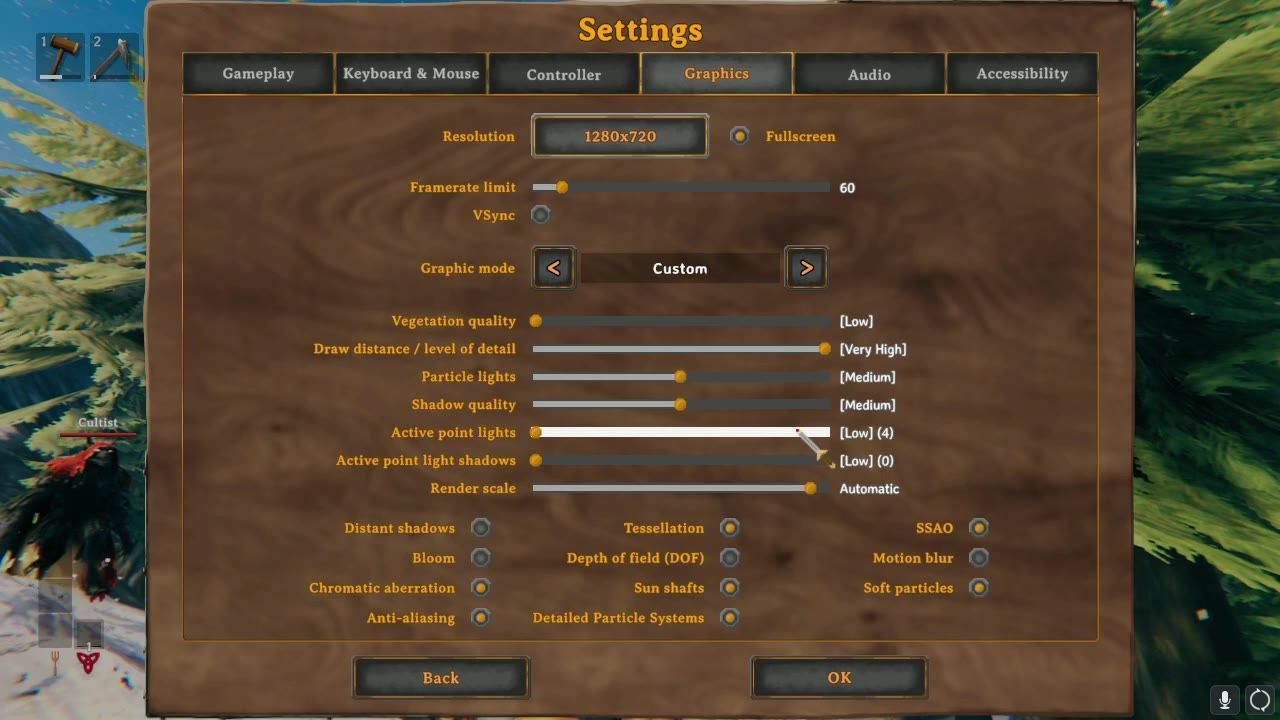
Graphics settings menu showing various options including 'Active point lights' control. — JP Valheim
Strategic Base Placement
Base location is crucial to minimizing lag in Valheim. Areas close to dense enemy populations, large builds, or heavily rendered terrain can strain your system.
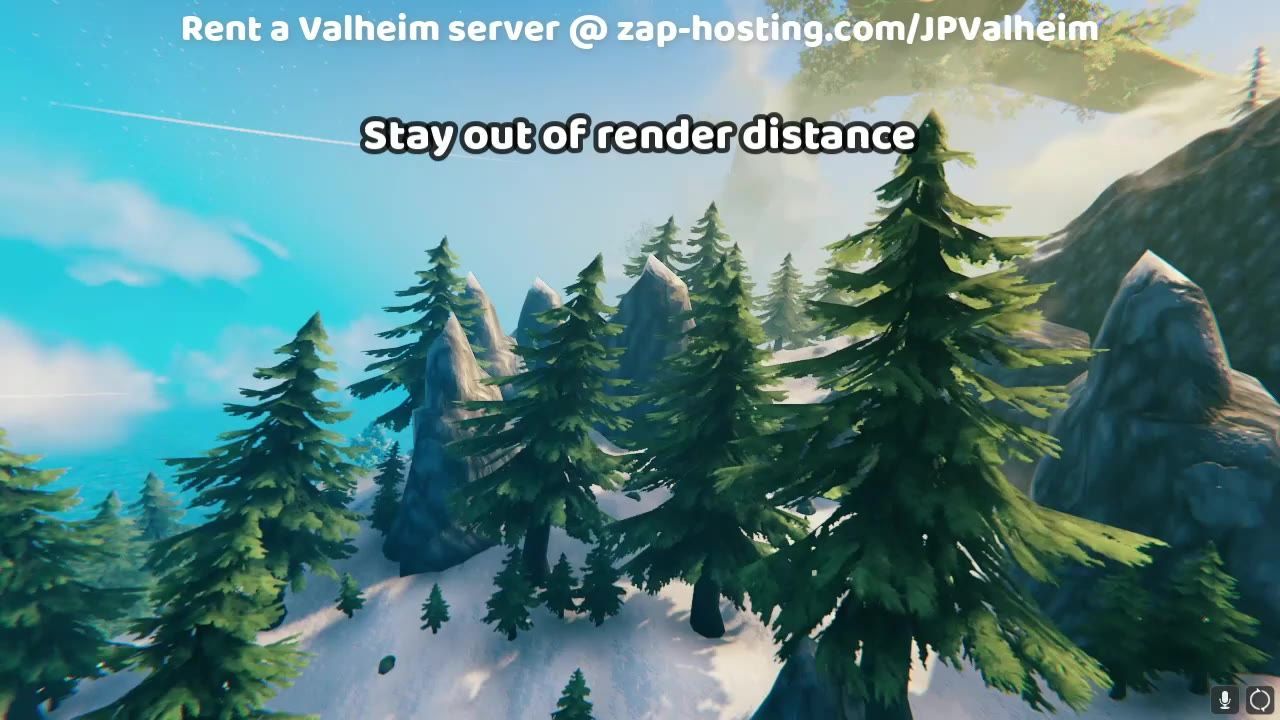
A view of a forested rocky area with distant render settings in a game environment. — JP Valheim
Reducing Lag in Single Player and Multiplayer
Lag solutions vary based on your playing mode—single player or multiplayer.
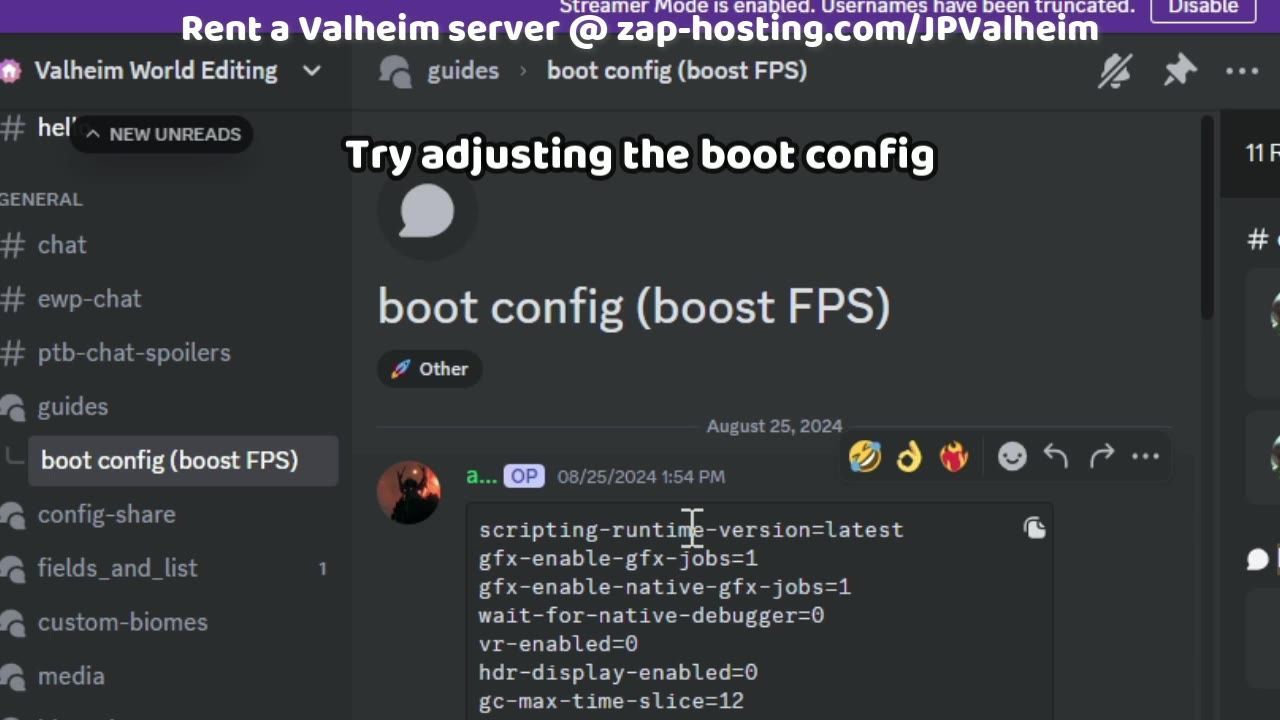
Discussion in a Discord channel about boot configuration settings to boost FPS. — JP Valheim
Handling Lag in Intensive Regions
Some biomes in Valheim, like the Ashlands or Mountains, are particularly demanding for your system. Effective resource management and strategic gameplay can reduce their impact.
- Avoid heavy resource usage or base building in these areas during gameplay sessions requiring optimal performance.
- Spread assets strategically across the map to limit rendering pressure on high-demand areas.
FAQ
Optimal graphical settings for Valheim gameplay
Lower the resolution to 720p if your system struggles with 1080p and reduce the "Active point lights" settings in the graphics menu to minimize lighting-related lag.
Reducing lag in intensive Valheim biomes
Plan ahead to avoid challenging biomes like the Ashlands or Mountains when engaging in resource-intensive gameplay. Spreading assets strategically can also help reduce rendering strain.
Sources
Screenshots on this page are frames from the videos below, used to illustrate the steps they describe. All rights remain with their creators.
- How Players Can Reduce Lag and Increase FPS in Valheim — JP Valheim, October 30, 2024 (Creative Commons Attribution license (reuse allowed))
Checked against:
- Valheim Has A Release Date! — IronMontilyet, 2026-06-07
- Patch 0.221.13 (Public Test) — IronMontilyet, 2026-05-06