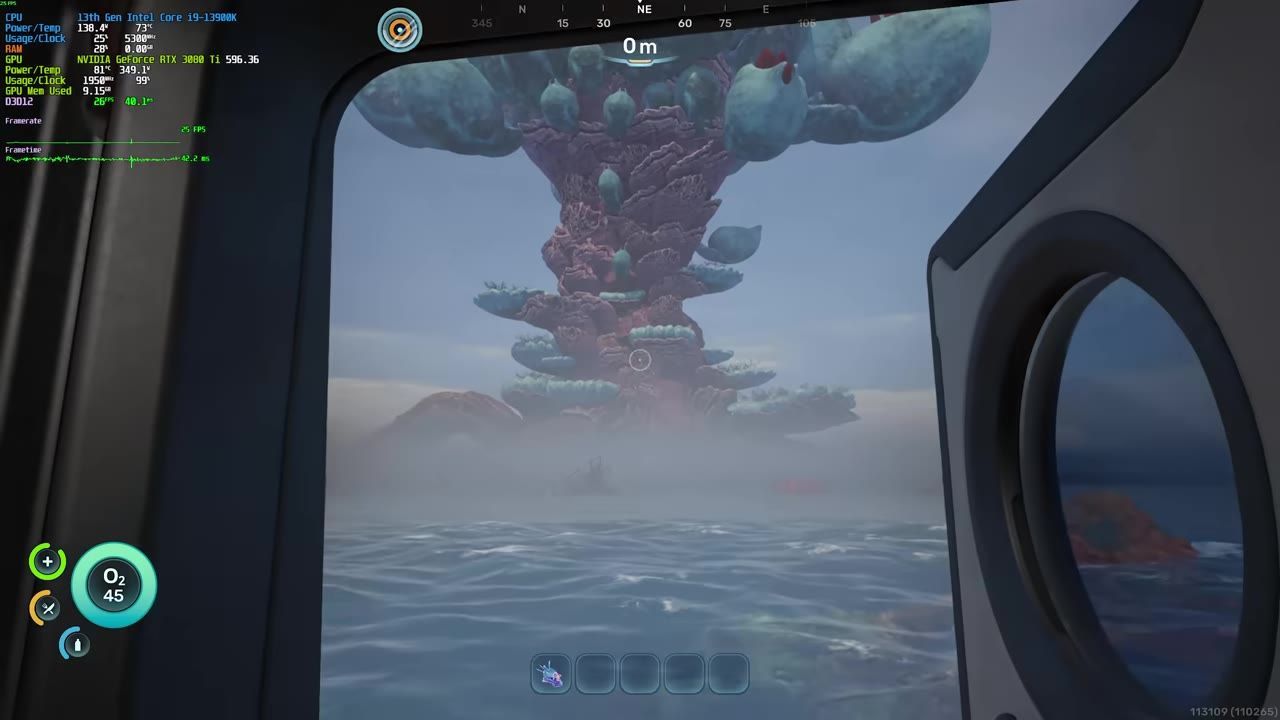
To optimize Subnautica 2 for smooth multiplayer, adjust graphics settings to balance quality and performance, leverage upscaling tools like DLSS or TSR based on your hardware, and ensure all system drivers are up to date.
Best Settings for Multiplayer
Configuring the right settings can significantly improve your experience when playing Subnautica 2 in multiplayer. Follow these steps to optimize your graphics and display settings:
steps
- Open the graphics settings menu and switch to Fullscreen mode to potentially improve performance.
- Set the resolution to match your display's native resolution for optimal clarity. If necessary, use upscaling methods to adjust.
- Disable vertical sync unless you're experiencing screen tearing.
- Minimize resource-heavy settings like shadows, effects, and texture quality to boost performance, especially on lower-end systems.
- Run the "Hardware Benchmark" option in the graphics menu to assess your system's capabilities and tailor settings accordingly.
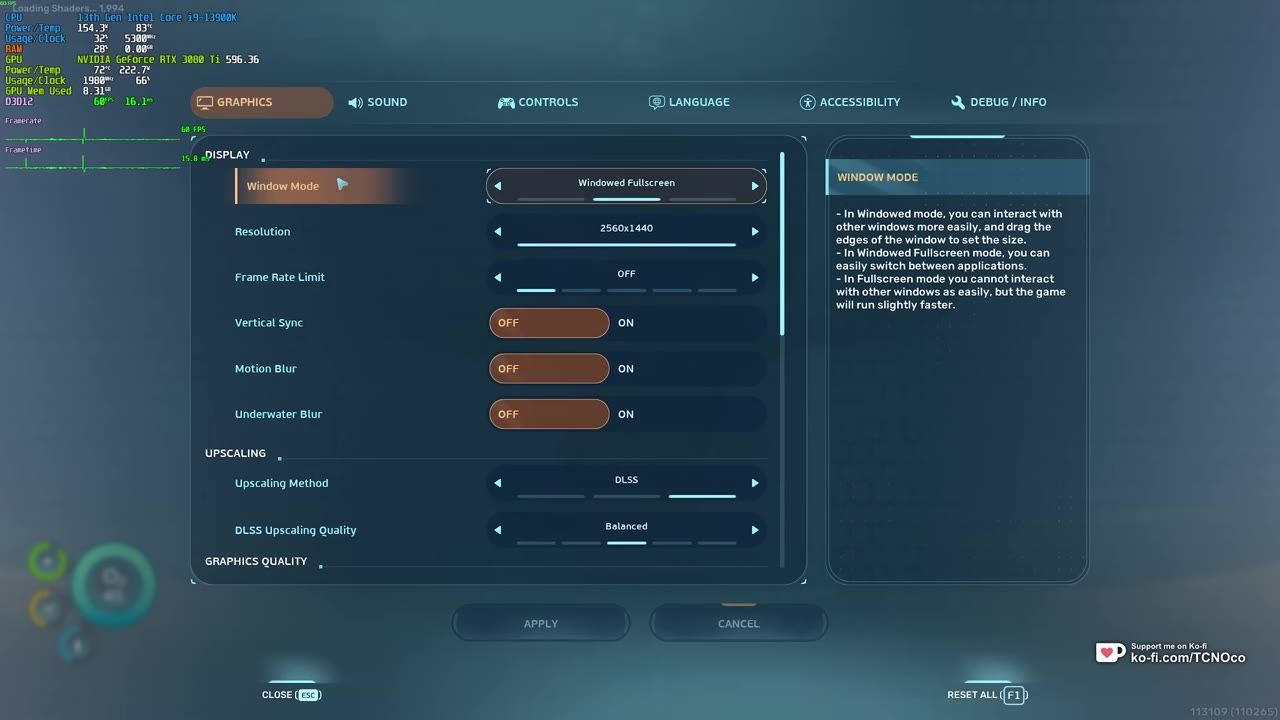
Graphics settings panel with Display options visible, showing settings for window mode and resolution. — TroubleChute
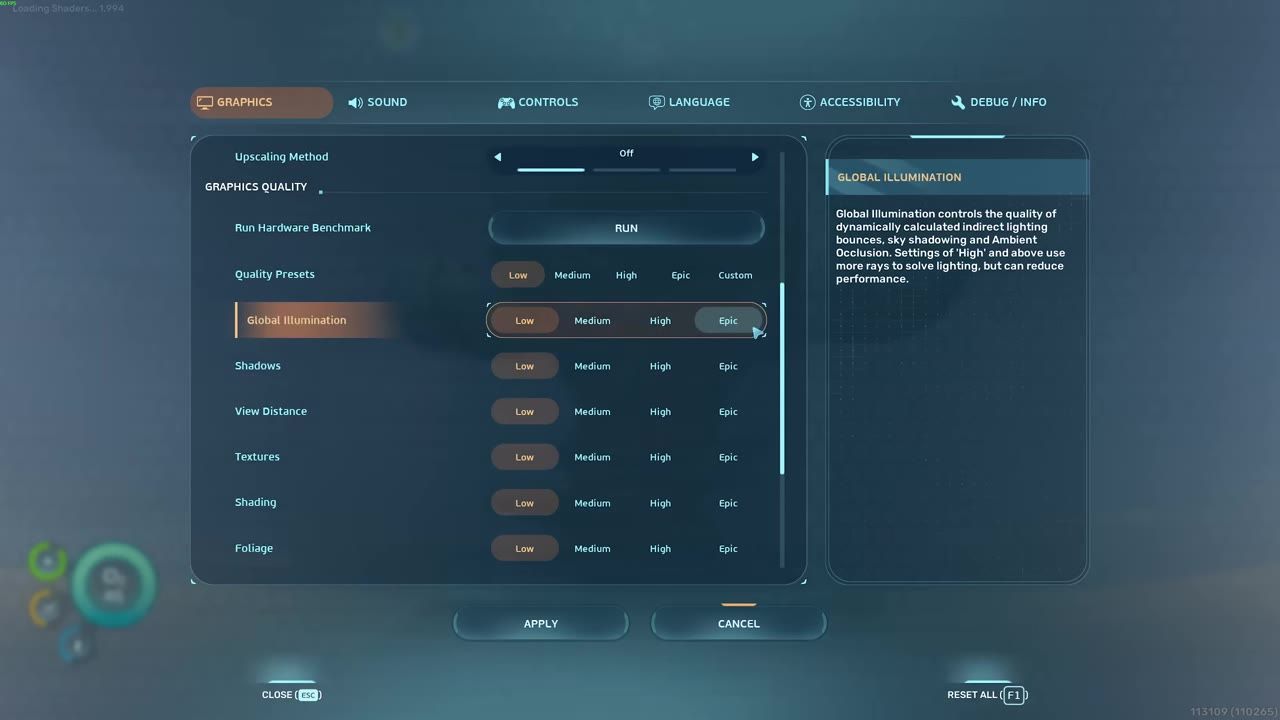
The graphics settings menu displays the 'Run Hardware Benchmark' option. — TroubleChute
Subnautica Co-op Performance Analysis
Different graphical settings impact your FPS and multiplayer responsiveness. Here's a comparison of key settings based on their resource demands:
comparison
Shadows
Reducing shadows from Epic to Low can yield a consistent FPS gain of around 3-10 frames, making it a priority choice for optimization.
Texture Quality
Texture settings are dependent on your system's VRAM. If your system has adequate VRAM, you can set textures to Epic without impacting FPS.
Effects
Effects settings significantly influence performance. Setting Effects to High instead of Epic avoids a major FPS drop while retaining good visual quality.
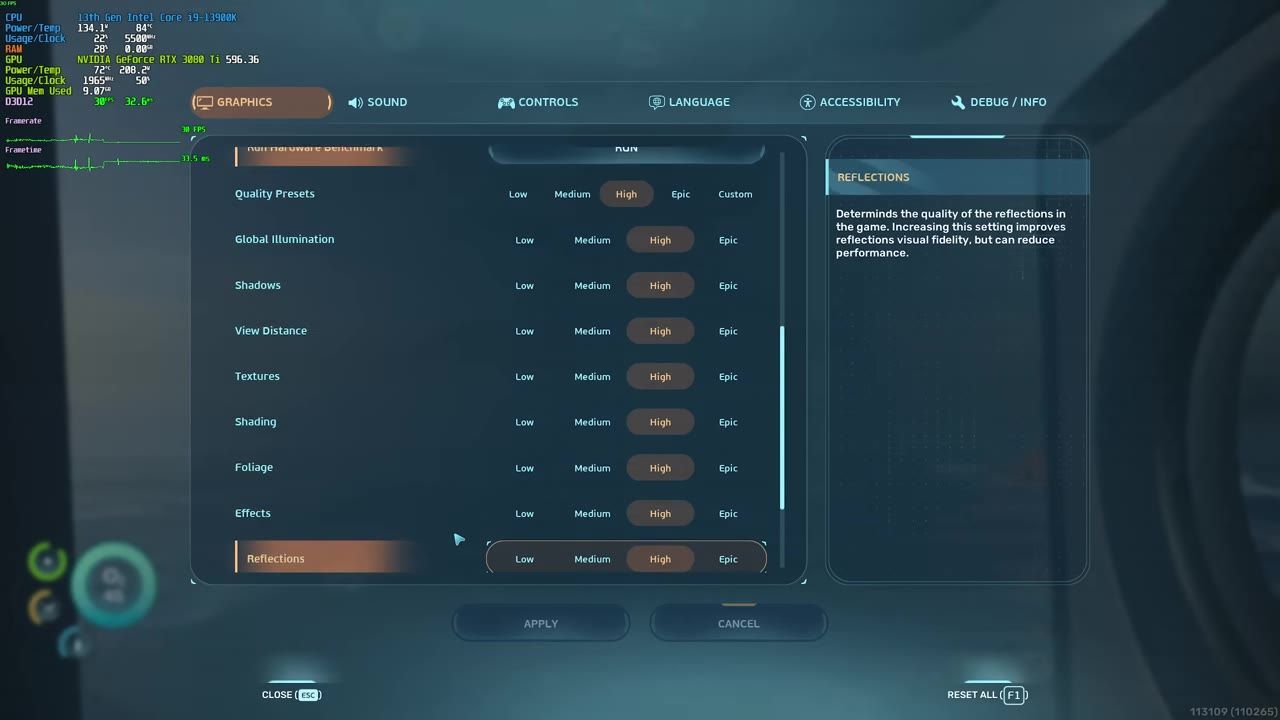
The graphics settings menu displays various options, including the Shadows setting. — TroubleChute
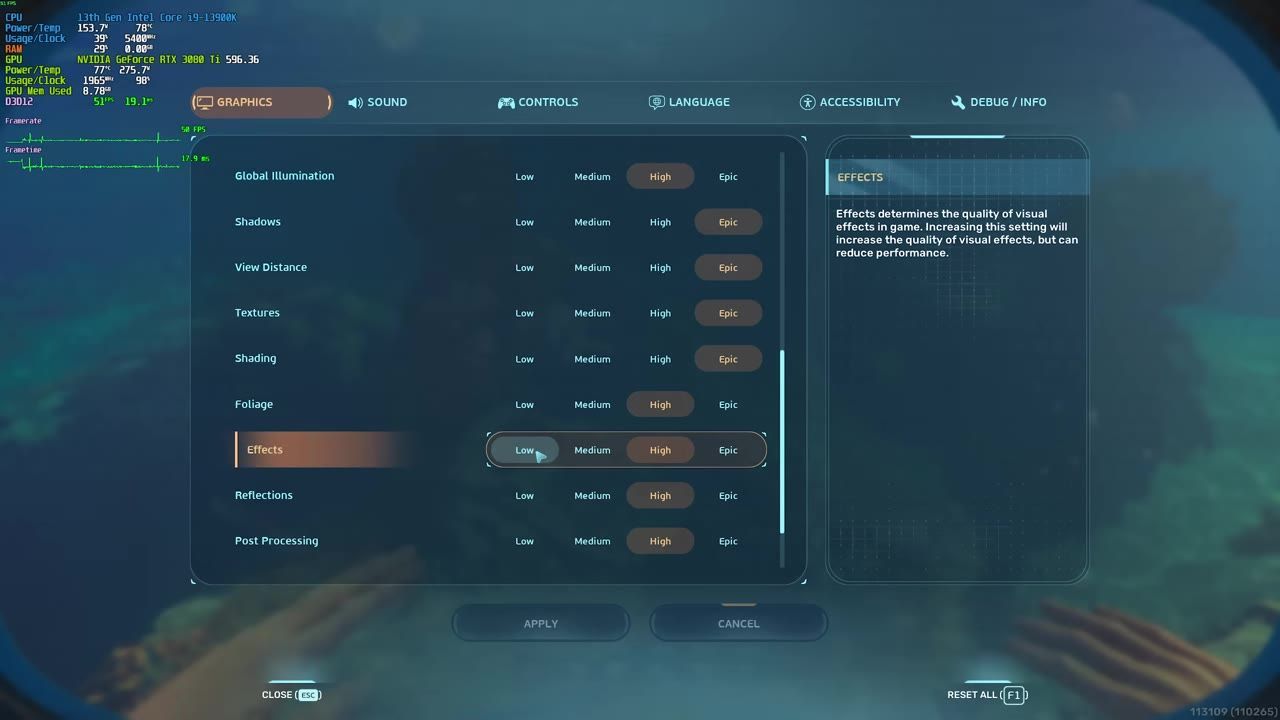
The Effects setting in Subnautica's graphics menu with selectable quality options is shown. — TroubleChute
Optimizing Upscaling and Anti-Aliasing
Upscaling and anti-aliasing methods can significantly affect performance and visual clarity. Choose the best option based on your hardware:
Choose the right upscaling option
- Select DLSS for Nvidia GPU users to achieve superior performance and visual clarity, especially during high-motion scenarios.
- Opt for TSR if you're using non-Nvidia hardware, as it provides moderate FPS improvements.
- Avoid DLAA entirely on lower-end systems, since it can drastically reduce FPS.
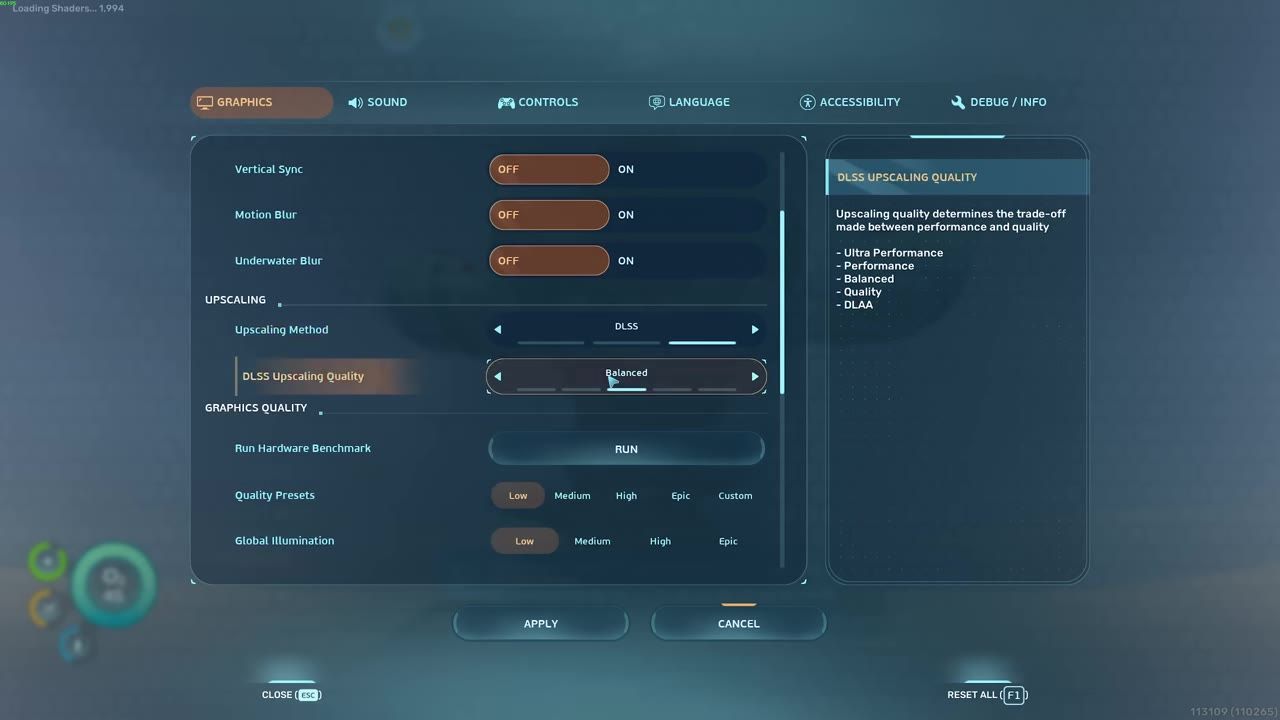
The graphics settings menu displays options for upscaling method and DLSS upscaling quality. — TroubleChute
Troubleshooting Common Lag Issues
If lag persists in multiplayer games, consider these tips to identify and resolve common performance bottlenecks:
FAQ
How do I optimize Subnautica 2 for smooth multiplayer?
You can optimize Subnautica 2 by tweaking graphics settings like shadows, effects, and texture quality to balance performance and visuals. Use upscaling options such as DLSS or TSR based on your hardware and ensure your system drivers are up to date.
What settings prevent lag in Subnautica 2 co-op?
To prevent lag in co-op gameplay, disable or lower settings like shadows and effects, run the hardware benchmark to tailor your settings, and prioritize performance by selecting the appropriate upscaling method (e.g., DLSS or TSR).
Sources
Screenshots on this page are frames from the videos below, used to illustrate the steps they describe. All rights remain with their creators.
- BEST Optimization Guide | Subnautica 2 | Max FPS | Best Settings — TroubleChute, May 14, 2026
Checked against:
- Subnautica 2 Early Access 1.2 - Buddy System Update — virtualdon, 2026-08-19