To optimize performance in Grounded 2 on PC, update your drivers, adjust Nvidia or Radeon settings, and fine-tune in-game graphics to achieve a balance between performance and visuals.
Prepare Your System
Make sure your system is ready to run Grounded 2 efficiently. Proper system preparation helps mitigate performance issues.
prerequisites
- Ensure GPU drivers are up-to-date. Check for updates for Nvidia or AMD hardware using their respective management tools.
- Confirm your monitor is configured to use its maximum refresh rate in your display settings.
- Manage your GPU's global settings to prioritize performance while maintaining quality.
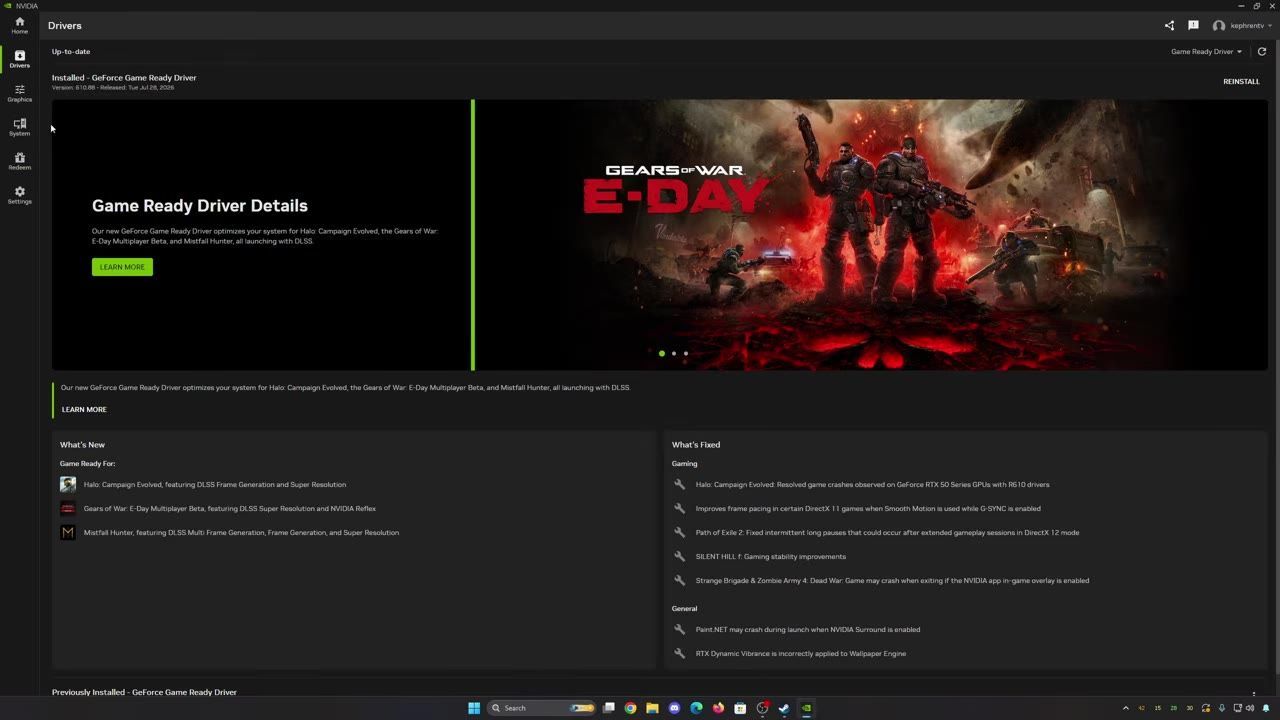
The Nvidia driver update screen displays game ready driver details and new features. — Kephren
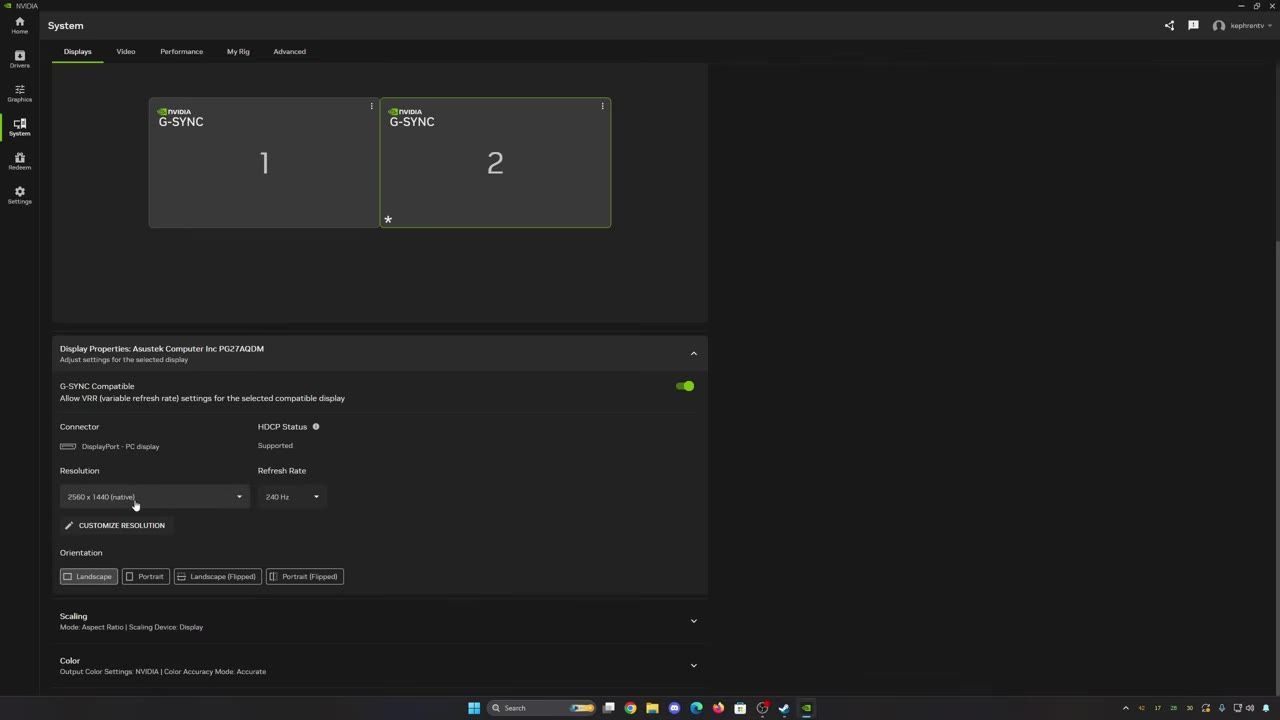
Monitor settings panel in Nvidia software, displaying options for resolution and refresh rate. — Kephren
Configure Nvidia Settings
Optimize your Nvidia GPU's settings for peak performance in Grounded 2.
steps
- Enable DLSS and select the appropriate preset based on your Nvidia GPU series:
- Use preset K for 2000/3000 series GPUs.
- Use preset M for 4000/5000 series GPUs for a balance of FPS and image quality.
- Set Low Latency Mode to 'Ultra' for reduced input lag.
- Adjust shader cache size to at least 100 GB for smoother performance, especially if your disk space allows.
- Enable G-Sync for full-screen mode to avoid stuttering and clipping issues.
- Ensure your monitor is set to its highest refresh rate in the display properties.
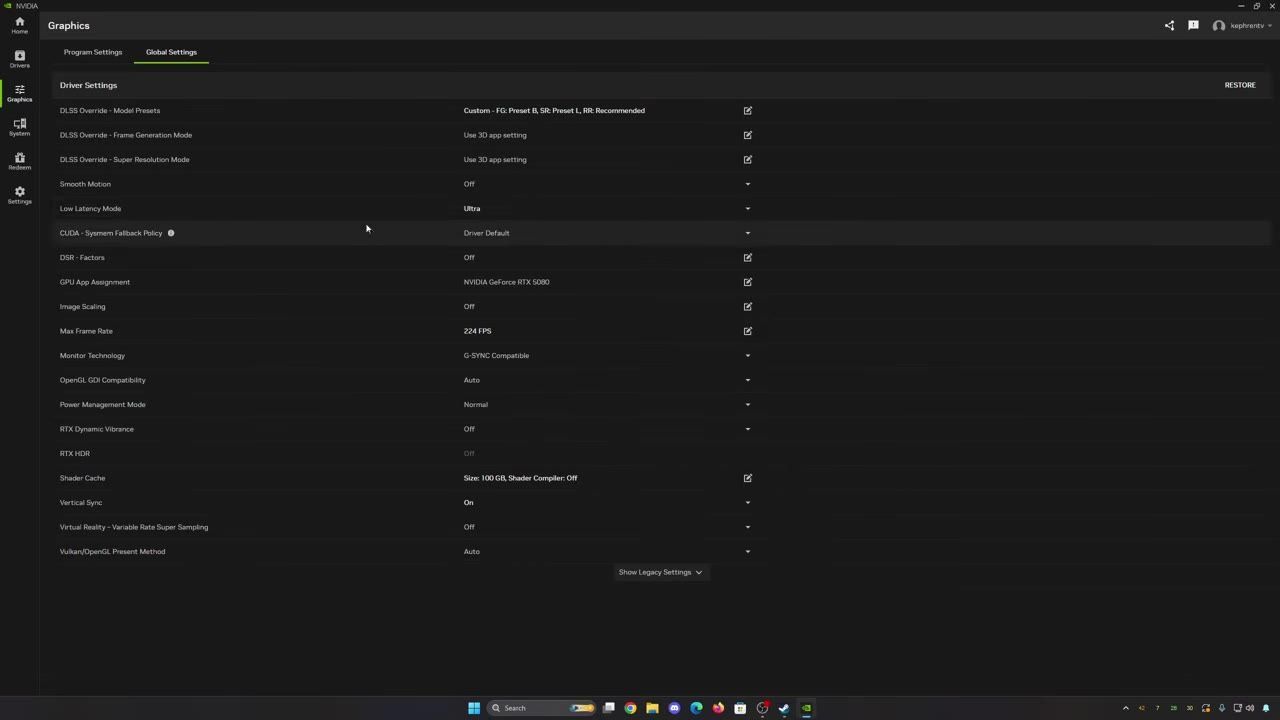
Nvidia graphics settings panel showing global settings including options for DLSS override and Low Latency Mode. — Kephren
Configure AMD Radeon Settings
Configure your AMD Radeon settings to improve FPS and address potential issues.
steps
- Update your Radeon drivers to the latest version.
- Select the dedicated GPU in the Radeon settings—avoid using the integrated graphics.
- Enable FSR upscaling and frame generation settings.
- Configure Radeon Chill and FreeSync:
- Set Chill to a frame cap slightly below your monitor’s refresh rate to ensure synchronization with FreeSync.
- Reset shader cache periodically if you experience stuttering or graphics corruption issues.
- Optionally, overclock your GPU for additional FPS gains (consult a dedicated guide for the specifics of your GPU model).
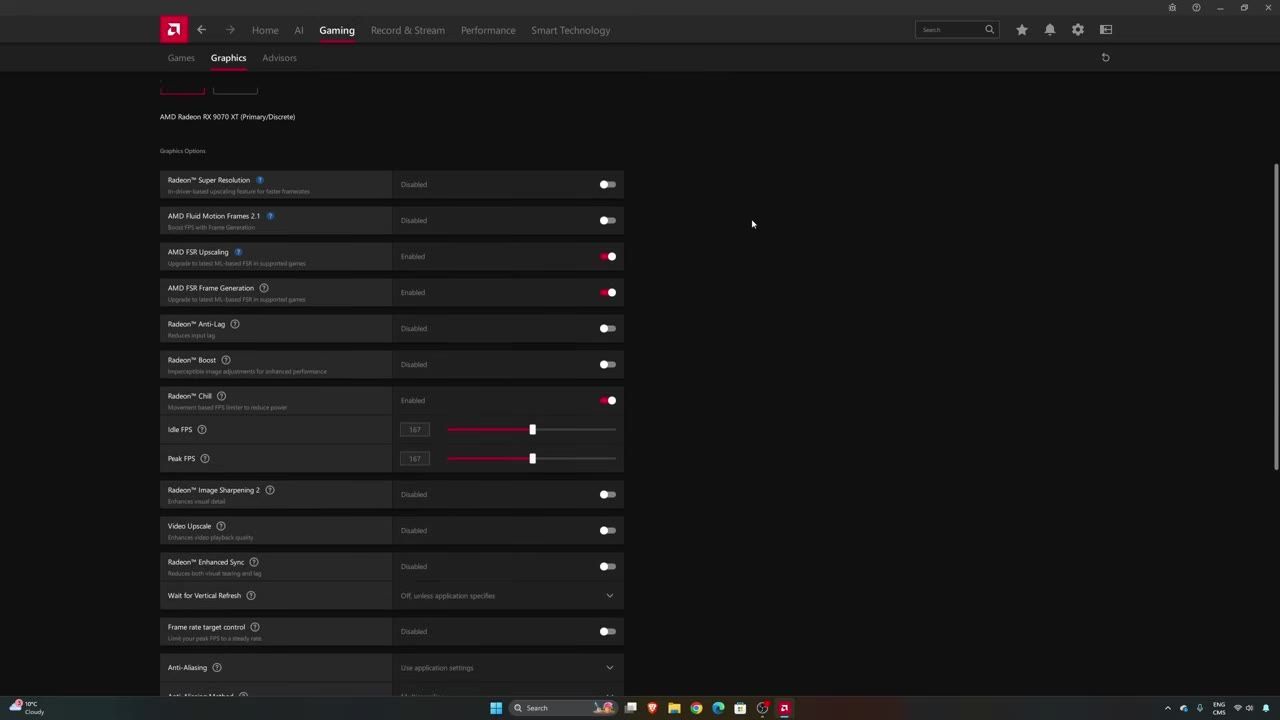
The AMD Radeon settings screen with FSR and Chill configurations visible. — Kephren
In-Game Graphics Configuration
Fine-tune the game's graphics settings to strike the perfect balance between FPS and visual quality.
steps
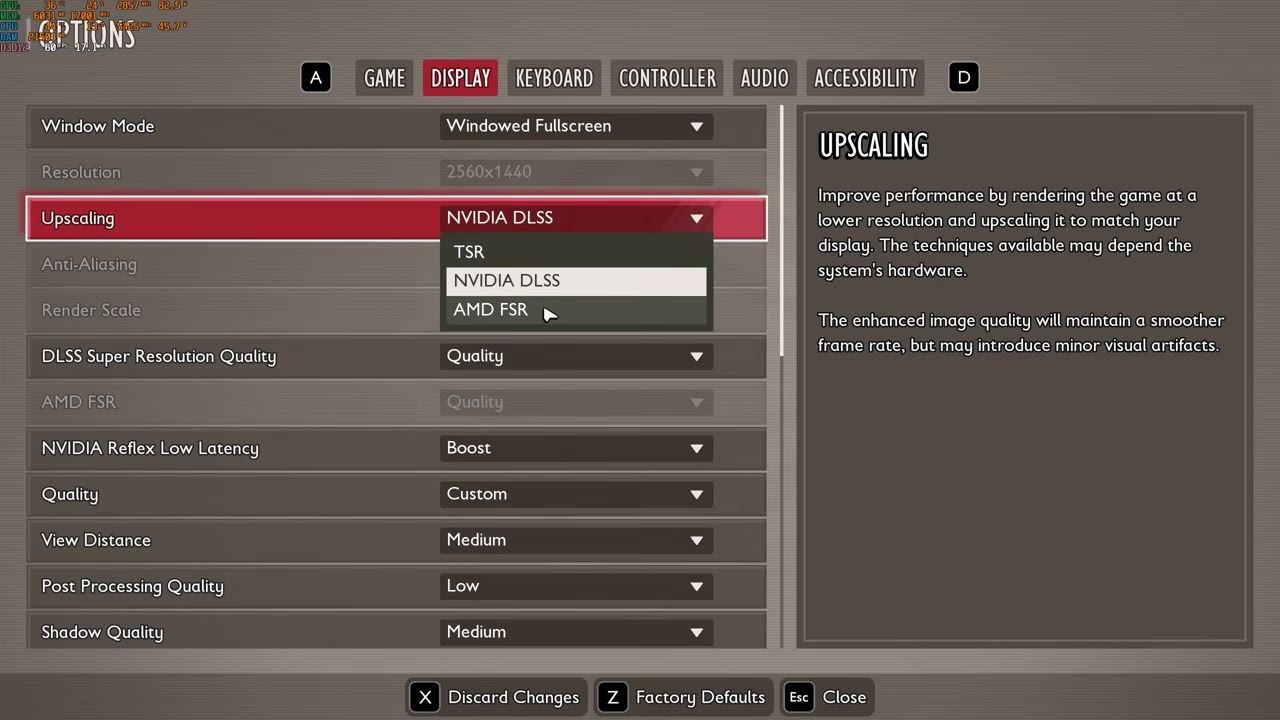
- Select DLSS (for Nvidia cards) or FSR (for AMD cards) upscaling set to 'Quality' mode for better visuals and performance. Avoid TSR upscaling.
- Configure individual graphics settings:
- View Distance: Set to medium for balanced performance and image quality.
- Post Process Quality: Choose 'Low' for better visibility and FPS gains.
- Shadows: Set to medium to avoid overly flat visuals while boosting FPS.
- Global Illumination: Keep this at medium for visual integrity without significant FPS loss.
- Reflection Quality: Set to low to improve stability and gain an FPS boost.
- Texture Quality: Adjust based on your VRAM—Epic for 6 GB+, Medium for 4 GB, and Low for less than 3 GB.
- Effects and Foliage: Use medium settings for both to optimize performance without excessive visual compromise.
- Disable VSync, motion blur, chromatic aberration, and bloom for faster rendering.
- Adjust field of view to 90 for optimal FPS without distortion effects.
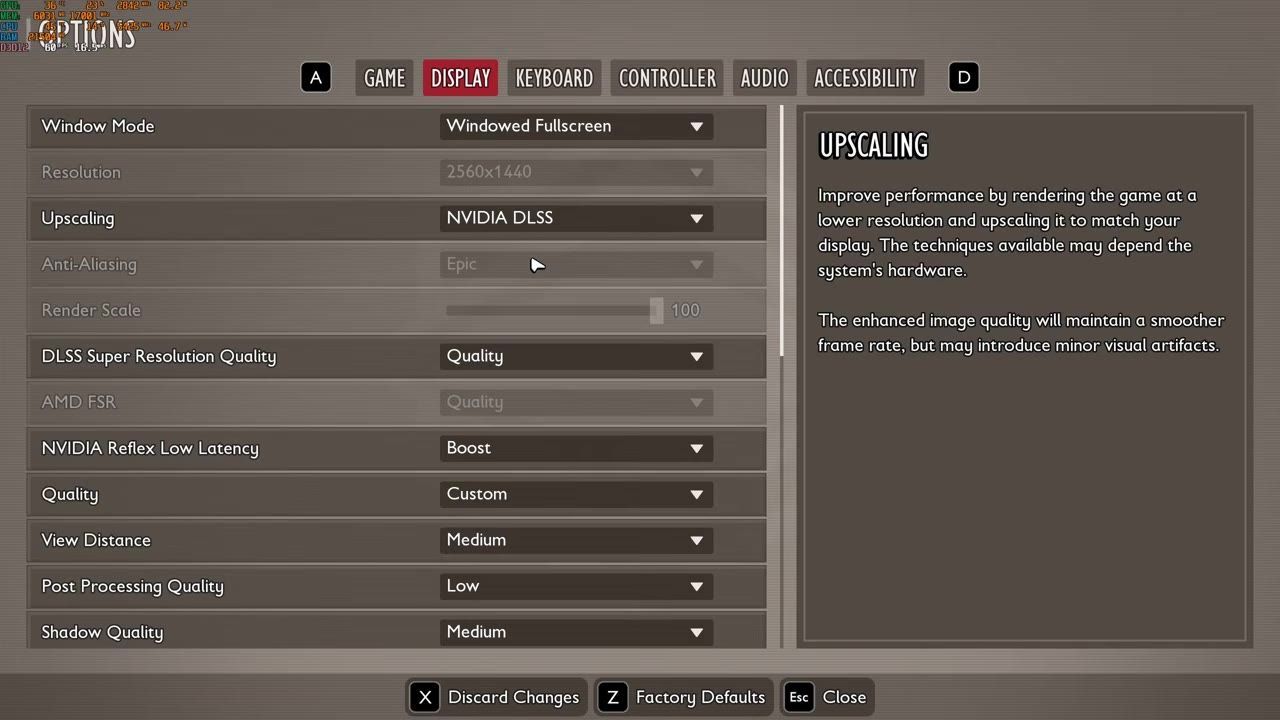
Graphics settings panel in Grounded 2 with multiple display configuration options. — Kephren
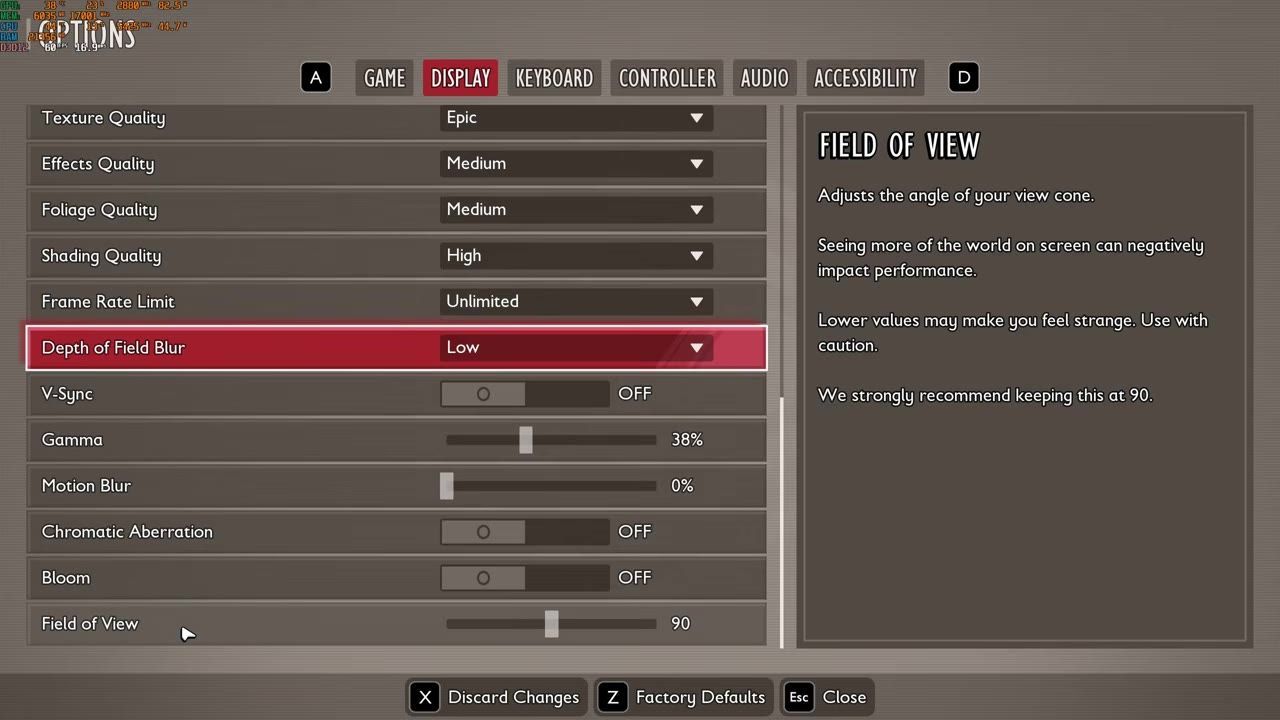
The in-game display options include field of view and effects settings for graphics customization. — Kephren
Troubleshooting and Tips for Better FPS
Follow these tips to address common performance challenges in Grounded 2.
FAQ
What are the best settings for Grounded 2 on PC?
The guide recommends medium settings for key visual features like shadows and global illumination while disabling effects like motion blur and VSync. Use DLSS or FSR with a 'Quality' preset for optimal FPS and image clarity.
How can I boost FPS in Grounded 2 effectively?
Boost FPS by updating drivers, enabling DLSS/FSR upscaling, optimizing GPU settings, and disabling resource-heavy in-game effects such as motion blur and chromatic aberration.
What graphics settings provide the best balance for performance and visuals?
Medium settings for shadow quality, global illumination, and effects ensure good visual quality without significant FPS loss. Boutique settings like field of view should remain at default for optimal performance.
Sources
Screenshots on this page are frames from the videos below, used to illustrate the steps they describe. All rights remain with their creators.
- [2026] Grounded 2 Into the Abyss: The ULTIMATE PC FPS Guide! — Kephren, August 12, 2026
Checked against:
- Help us Decide our Next Update Name! — Obsidian Aarik, 2026-08-25
- Patch 0.5.0.4 Has Been Released — Obsidian Aarik, 2026-08-19
- 0.5.0.3 Hotfix Has Been Released — Obsidian Aarik, 2026-08-13