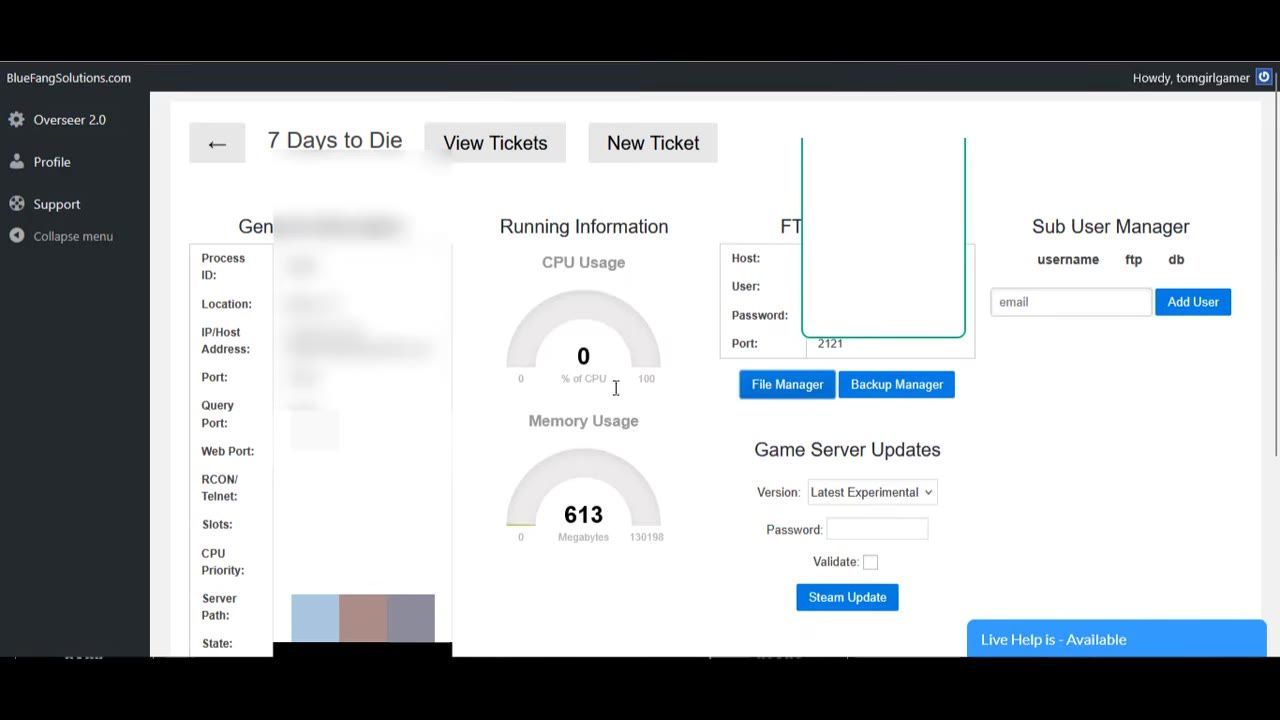
Stop your server, update the configuration file with your sandbox code, and restart to apply the new settings.
Prerequisites for Setting Up a Server
Before starting, ensure you have the following:
prerequisites
- Access to a server hosting service like Bluefang or Pingperfect.
- A sandbox code you wish to use for your server configuration.
- Awareness of the server configuration file location within your hosting service's file manager.
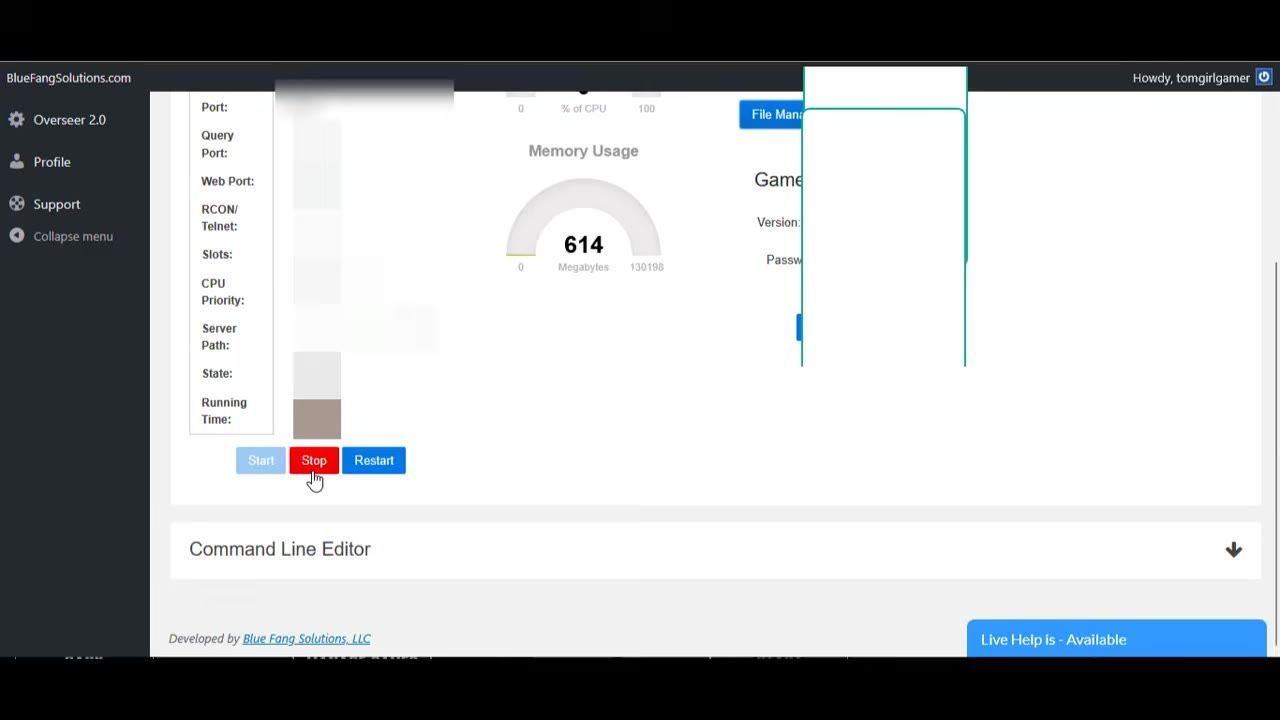
Bluefang hosting panel showing server controls and memory usage data. — TomGirlGamer
Steps to Configure Your Dedicated Server
Follow these steps to set up and configure your 7 Days to Die dedicated server:
steps
- Log into your server hosting panel and stop the server.
- Navigate to the hosting panel’s file manager.
- Locate the configuration file in the configuration folder.
- Scroll to the "sandbox code" section of the configuration file.
- Replace the existing sandbox code with your desired code, ensuring it is enclosed in quotation marks.
- Save the configuration file.
- Restart the server to apply the new settings and verify the configuration.
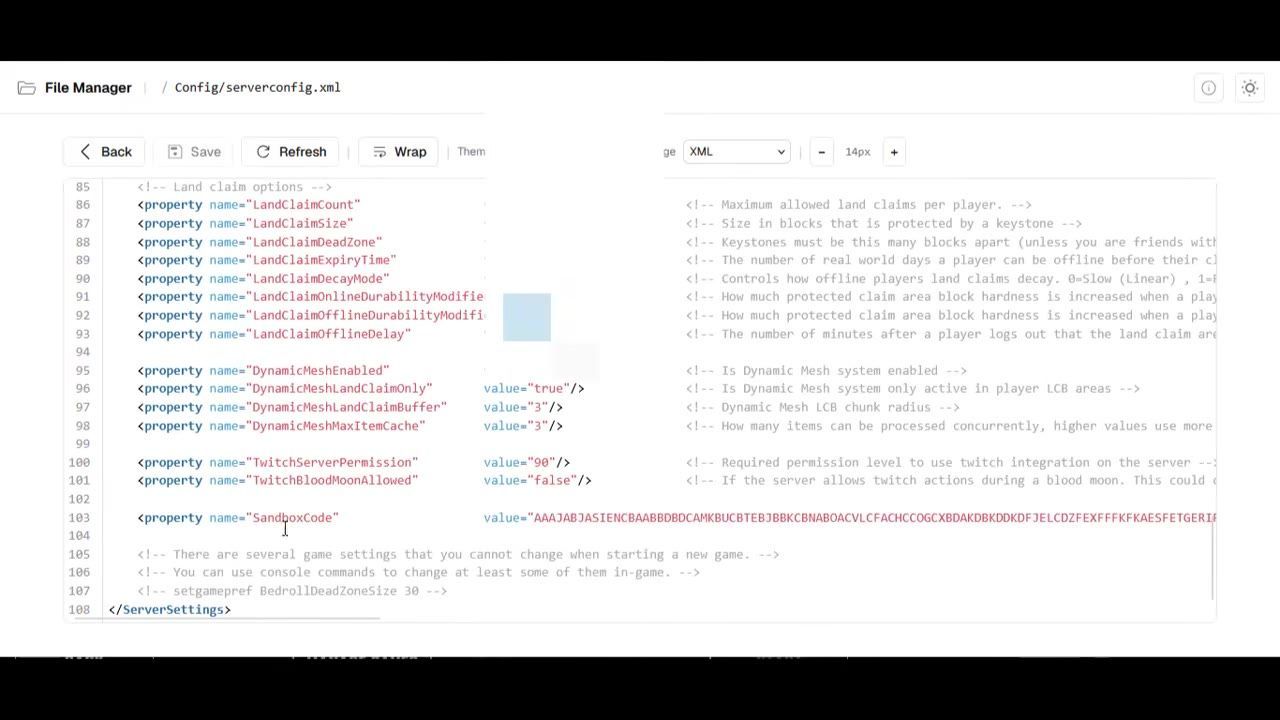
The server configuration file is open, displaying the sandbox code setting. — TomGirlGamer
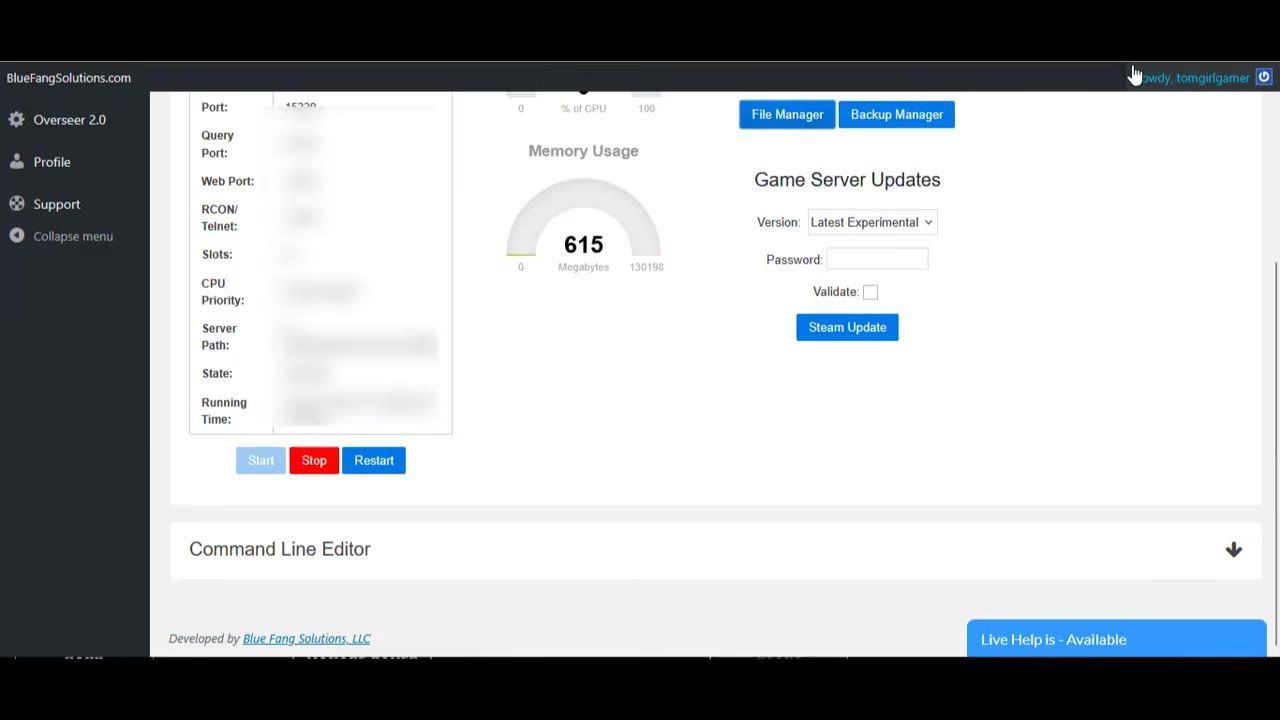
The hosting panel interface displays server options, including a Restart button. — TomGirlGamer
Tips for Customizing Sandbox Options
When configuring your server, consider customizing sandbox options for better gameplay:
FAQ
how to set up a dedicated server for friends
To set up a dedicated server for friends, stop the server using your server hosting panel, edit the configuration file with your desired sandbox code, save the changes, and restart the server. This process ensures your custom settings are applied.
step-by-step guide to hosting a 7 Days to Die server
Start by stopping your server, then navigate to the configuration file in your hosting platform's file manager. Paste your custom sandbox code in the designated section, save your edits, and restart the server to activate the setup.
Sources
Screenshots on this page are frames from the videos below, used to illustrate the steps they describe. All rights remain with their creators.
- 7 Days to Die 3.0 Dedicated Server Setup How to Get ALL 100+ New Settings On Your Server #7daytodie — TomGirlGamer, June 13, 2026
Checked against:
- V3.2.0 Stable — Hated, 2026-08-26
- V3.2.0 EXP - b9 Update — Hated, 2026-08-19
- V3.1.0 Henpocalypse Stable Release - MP Invite Bug Hotfixed — Hated, 2026-07-27